
Browse Document Version History
Every Folio Document keeps a version history automatically. Folio records versions as you work and consolidates them over time, so the history stays short enough to browse.
Opening version history
Open the ⋯ overflow menu in the Utility Bar and choose Version History. From there you can browse the list of versions, compare any two, and restore an earlier one.

How versions are recorded
Each save records a snapshot for the current 5-minute window. If you keep working, further saves inside that same window update that same snapshot rather than creating new ones, and each person who edits during the window is added to the snapshot’s list of editors.
This is why a solid hour of writing doesn’t produce hundreds of versions. It also means a snapshot can carry more than one name — if you and a colleague both edit during the same window, both names appear on it.
How history is consolidated
A nightly job merges older snapshots so the history stays navigable as a Document ages:
| Age | What happens |
|---|---|
| Under 24 hours | 5-minute snapshots are kept as-is |
| Older than 24 hours | 5-minute snapshots merge into hourly snapshots |
| Older than 3 days (72 hours) | Hourly snapshots merge into daily snapshots |
Every merged snapshot keeps that period’s final content and the names of everyone who edited during it. So consolidation costs you intermediate steps, not information about what the Document said or who worked on it.
The practical consequence: recent history is fine-grained and older history is coarse. If you need to recover something from a specific moment, do it in the first day while the 5-minute snapshots still exist. After that you can still get the state at the end of an hour, and later the state at the end of a day.
Version numbering
Version numbers roll up naturally as history consolidates, so the number itself tells you the granularity:
- Daily snapshots —
v1,v2, … - Hourly snapshots —
v1.1,v1.2, … - 5-minute snapshots —
v1.1.1, …
A version numbered v3.2.4 is a 5-minute snapshot from the second hour of the third day of the Document’s history.
Comparing versions
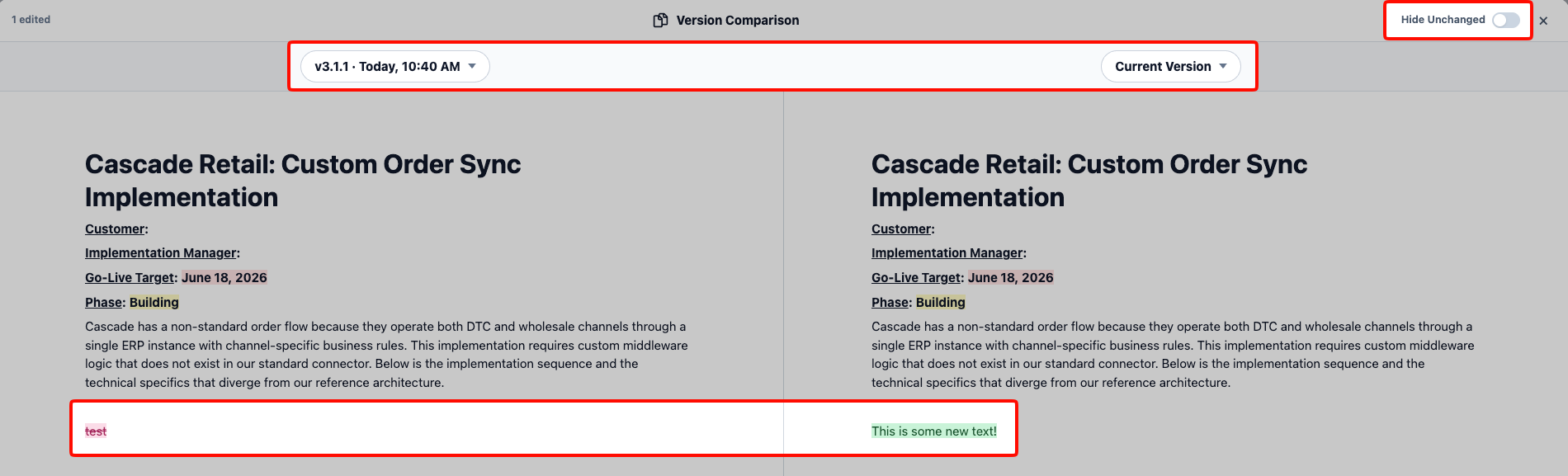
Tick the checkboxes on any two versions in the sidebar, then click View Version Comparison — or Cancel Compare to drop the selection. Exactly two can be selected at a time; the rest grey out until you clear one.

The older version then appears on the left and the newer one on the right, with the differences highlighted — removed text struck through in red, added text in green. A count of what changed sits in the upper-left, and the dropdown above each side lets you swap either version without leaving the comparison.
Use the Hide Unchanged toggle in the upper-right to collapse untouched regions of the Document. On a long document where someone changed one paragraph, this is the difference between reading twelve pages and reading four lines.
Restoring a version
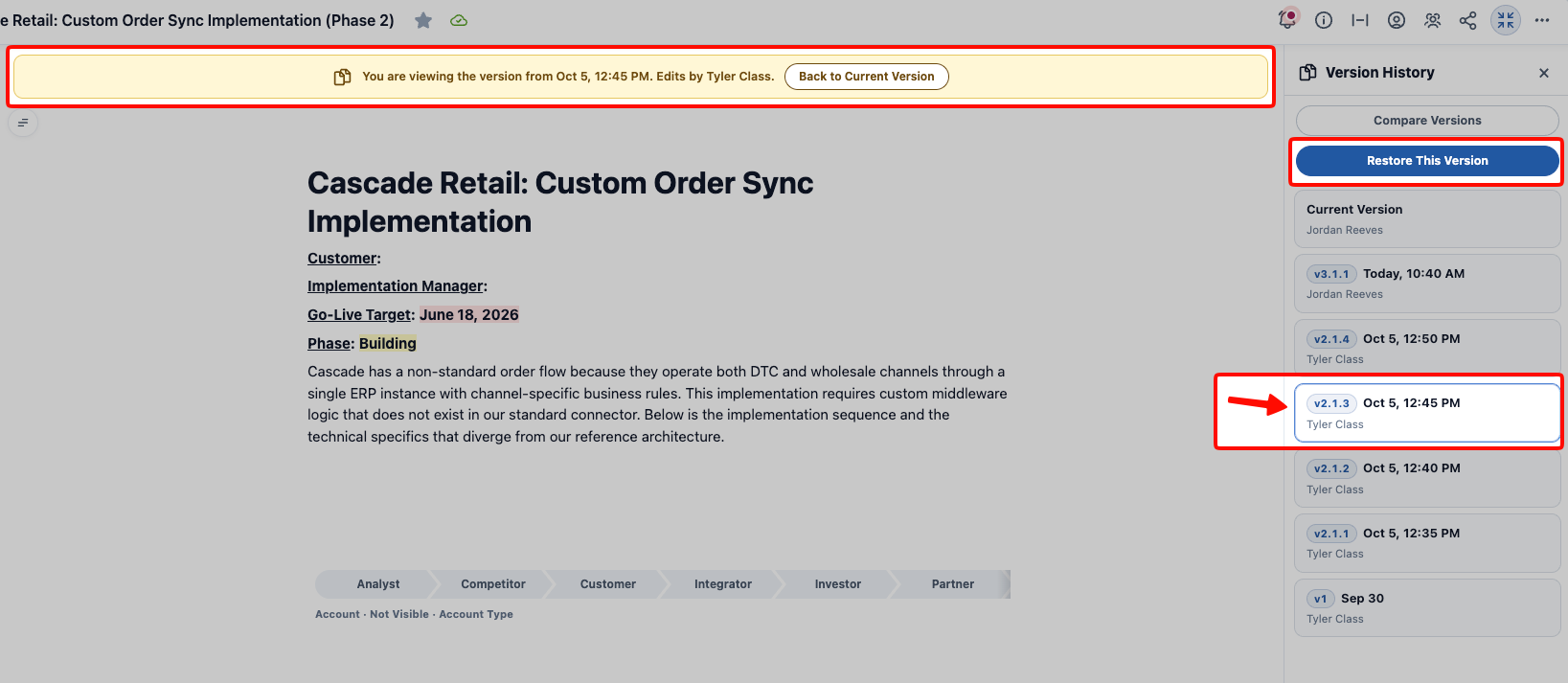
Click a version in the sidebar to preview it. A yellow banner across the top names the version you’re viewing and who made those edits, with Back to Current Version to leave the preview — and Restore This Version sits at the top of the sidebar when you’re ready to commit to it.
Restoring returns the Document’s content to the state captured in the selected version.
Because restoring is itself a change to the Document, it’s recorded in history like any other edit — so restoring the wrong version isn’t destructive, and you can restore back to where you were.
The Document’s owner is notified when someone else restores it, naming who did it and which version it went back to. Restoring your own Document notifies nobody, and a Queue-owned Document generates no restore notification. See Notifications.
You need edit access, and the edit lock, to restore a version. If someone else is currently editing the Document, wait for the offer banner before restoring.
How long versions are kept
Versions older than 12 months are removed by default. This retention period is configurable by your Salesforce admin, and it can be set to keep versions forever.
If your team has a compliance or audit reason to retain document history longer than a year, that’s a conversation with your admin — see Version history retention for the setting.
Related: Using the Folio Document Editor · View and Edit at the Same Time · Collaborate with Comments · Browse the Folio Docs home page
View this page as Markdown — for LLMs and plain-text tools.