
Check the Prerequisites
Folio Docs asks two things of your Salesforce org: it must be on a supported Salesforce edition, and Lightning Web Security (LWS) must be enabled.
Check both before you do anything else in Admin Setup. They take a minute to verify, and they determine whether Folio Docs will run at all.
Supported Salesforce editions
Folio is supported on Enterprise, Unlimited, Performance, and Developer Editions of Salesforce.
Not currently supported: Professional and Group/Team Editions. These editions do not include Apex by default; support may be added in a future release.
Why Lightning Web Security is required
Lightning Web Security is the modern security architecture for Lightning Web Components, and it is what the Folio Docs editor is built against. The editor’s rich-text engine, the @ and / menus, and the Salesforce-connected components all depend on the JavaScript behavior LWS provides.
This is a hard dependency, not a recommendation. If your org intentionally keeps Lightning Web Security disabled, Folio Docs will not work. There is no fallback mode, no partial functionality, and no configuration on the Folio side that works around it. If LWS is off and must stay off, Folio Docs is not a fit for the org until that changes.
Check whether it’s already enabled
Lightning Web Security is enabled by default in most orgs, so in the common case this is a quick confirmation rather than a change.
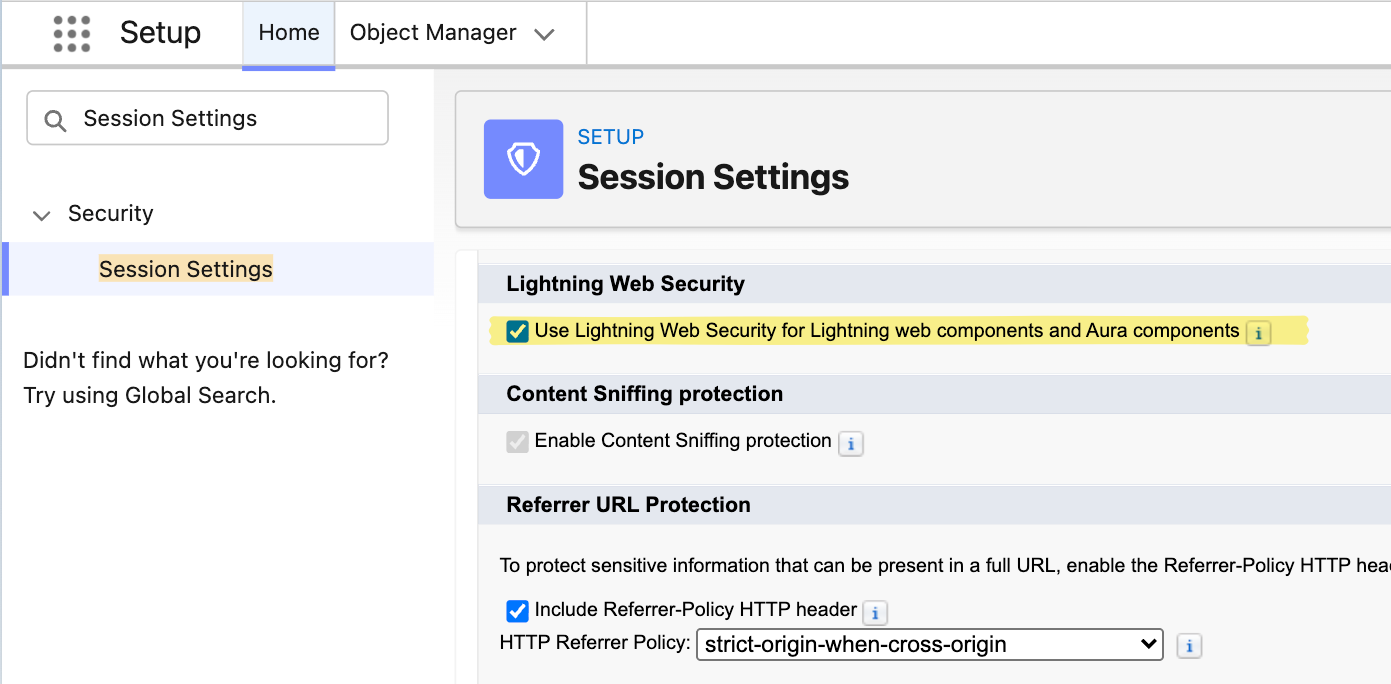
- From Setup, enter
Session Settingsin the Quick Find box and select Session Settings. - Scroll to the Lightning Web Security section.
- Confirm Use Lightning Web Security for Lightning web components and Aura components is checked.
- If it isn’t checked, check it and click Save.
If the setting is missing entirely, your org is on a Salesforce release or edition where LWS is always on — that’s fine, and no action is needed.
If you’re turning LWS on for the first time
Lightning Web Security is an org-wide platform setting, so it affects every Lightning component in the org — not just Folio. If your org has custom Lightning Web Components or Aura components built by another team, coordinate with them and test in a sandbox before enabling it in production. Salesforce’s own LWS documentation covers the migration considerations in detail.
What’s next
Once your edition and LWS are confirmed, you’re ready to configure Folio:
- If you haven’t installed the package yet, start with Install the Package and Assign Permissions.
- If the package is installed and licensed, go to Use the Admin Panel to configure Folio for your org.
- For a full, ordered rollout plan, follow the Setup Checklist.
Related: Install the Package · Assign Permissions · Use the Admin Panel · Follow the Setup Checklist
View this page as Markdown — for LLMs and plain-text tools.