
What is Folio Docs?
Folio Docs is a Salesforce-native app that lives inside your Salesforce org, giving you a full-featured Document editor right where you already work. You write your account plans, close plans, case summaries, meeting notes, and other context on Account pages, Opportunity pages, Case pages, and a dedicated Folio Docs home page that gives you a single hub for all your Docs.
If you’re a sales rep, implementation manager, customer success manager, support engineer, or anyone else whose job depends on knowing the context behind a record, Folio is built for you.
What’s in it for you
Most documentation tools sit outside the CRM. You write something in a third-party tool, paste a link into Salesforce or Slack, and hope future-you can find it later. Folio replaces that with a model where Documents are linked directly to the records they’re about:
- Find what you need without hunting. Every Document is anchored to the Salesforce records it’s about. When you’re on the Account page, the Documents linked to that Account are right there. When you’re on an Opportunity, the close plan is right there. No more digging through Drive, OneNote, Notion, or random Slack threads.
- Take over a record and inherit its history. When ownership of an Account or Opportunity changes hands, the new owner automatically gets access to the Documents linked to that record. You don’t have to ask anyone to share things with you — the context is already there because it’s tied to the record, not the person.
- Stop re-typing data that’s already in Salesforce. With Live Fields and embedded Salesforce components, your Documents pull current values directly from the linked record (Stage, Amount, Owner, Renewal Date, custom fields, etc.). When the record changes, the Document updates automatically. No more stale numbers in week-old account plans.
- Linking, tagging, and sharing are all one click. Tag a Document so you can find it later on the Folio Docs home page. Link it to additional records in seconds. Share it with a teammate or a public group. None of this requires switching tools.
- Stay in your flow. Folio surfaces Documents directly inside the record pages you already use. You don’t have to context-switch to write or read them.
In short: instead of splitting your work between Salesforce and a separate documentation system, Folio keeps everything in one place — with the records you already work on every day.
Where to find your docs
There are two main entry points to Documents in Folio. Both are windows into the same underlying content — there is one shared store of Documents in your org. Whether you open a Document from the editor on a record page or from the Folio Docs home page, you’re opening the same Document. Edits made in one place are immediately visible from the other. The two entry points just give you two different ways to find and work with that content depending on what you’re doing.
From a Salesforce record page
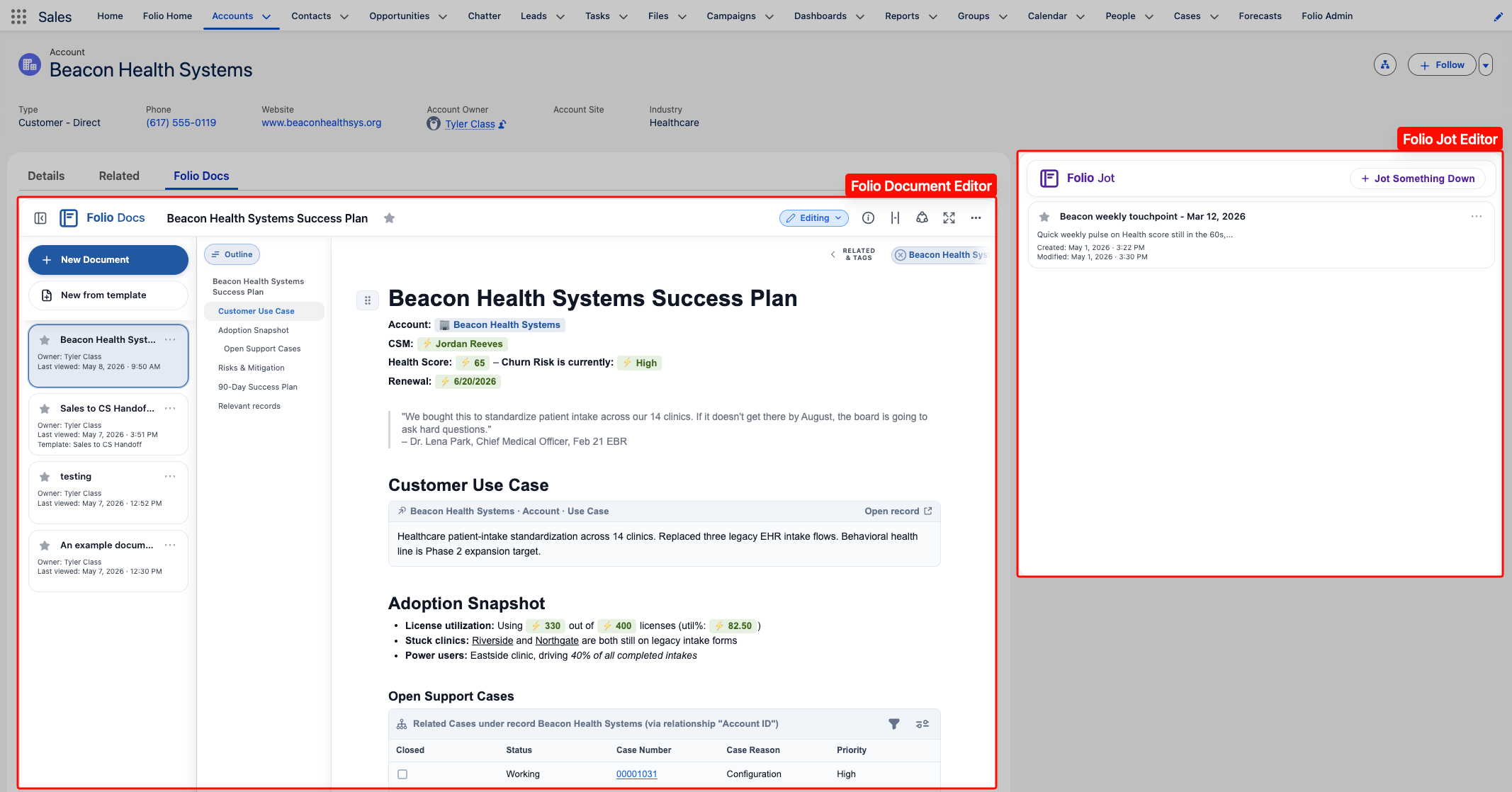
Admins place the Folio Document Editor component directly on the record pages where your team works (Account, Opportunity, Case, custom objects, etc.). When they do, the editor appears in-context — often on its own tab alongside Details and Related.
The Document Editor’s left sidebar lists every Document linked to that record, so you can switch between them without leaving the page. It’s the full editor, not a preview: the same formatting, Salesforce Components, comments, and sharing you’d get anywhere else.
From the Folio Docs home page
The Folio Docs home page is a dedicated page that gives you a single view of every Document you have access to across the whole org. Open it from the Salesforce App Launcher (the 9-dots menu in the upper-left), or, if your admin has added it, from the navigation bar of the apps you use most. If the Folio Docs tab isn’t on your nav bar, ask your admin to add it.
From the Folio Docs home page you can:
- Search across every Document you have access to (titles, body content, Tags, related record names).
- Filter by ownership (all, owned by me, or shared with me), starred / not starred, created date, related object, or Tag.
- Open any Document directly — and from the expanded view, see a network of related Documents that share linked records with the one you opened.
- Create new Documents from buttons next to the search bar.

Tip: Don’t see the Folio Document Editor on a record page where you wish you did? Ask your Salesforce admin — they control which record pages have the editor placed.
What’s next
Now that you understand what Folio is and how to find your way around, head into the rest of the End User Guide:
- Using the Document Editor — how the editor is laid out and what every part does.
- Browse the Folio Docs home page — search and manage every Document.
- View and Edit at the Same Time — working in a Document alongside colleagues.
- Collaborate with Comments — commenting, and how you hear about mentions and replies.
Related: Using the Document Editor · Browse the Folio Docs home page · View and Edit at the Same Time · Browse Document Version History
View this page as Markdown — for LLMs and plain-text tools.