
View and Edit at the Same Time
Two people can open the same Document at once. Only one of them can edit it at a time.
This page covers how Folio decides who’s editing, how to tell who that is, and how editing passes from one person to the next.
Why one editor at a time
The Salesforce platform does not support real-time co-editing the way a standalone document tool does. Folio gives editing to one person at a time so that everyone’s work is preserved exactly as they wrote it.
The tradeoff is that you sometimes wait for a colleague to finish.
How Folio knows who’s editing
Every open Document tab sends a heartbeat roughly every 10 seconds. A tab that is in Editing mode and sending a fresh heartbeat holds the edit lock.
The lock belongs to the tab, not to you. If you have the same Document open in a second browser tab, that second tab is blocked just like anyone else’s would be. It’s a common source of confusion — if Folio says a Document is being edited and you’re certain nobody else has it open, check your own other tabs first.
If a tab stops sending heartbeats — the person closed it, switched to Viewing, lost connection, or put their laptop to sleep — the lock goes stale and becomes available.
What you’ll see
Folio surfaces the current state through four things in the editor.
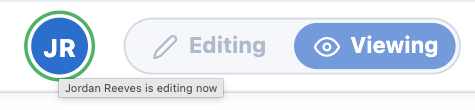
1 Viewer initials in the header. The initials of everyone else who currently has the Document open appear in the Document header. This is your at-a-glance answer to “is anyone else in here?” Whoever currently holds editing is ringed in green, and hovering their initials names them — “{name} is editing now.”
2 A blue banner naming who holds editing. When someone else is editing, a blue banner across the top of the Document tells you who. If you try to switch to Editing mode yourself, you’ll see the same “{name} is editing now.”

3 The offer banner. When the current editor stops editing or their session goes stale, a green banner tells you they’ve stopped and offers you the lock — click Start Editing to take it, or dismiss the banner with the × to stay in Viewing mode.

4 A yellow refresh banner. While you’re viewing a Document someone else is editing, this appears once their changes are saved, offering to reload the latest content. Their edits don’t stream into your view live — you pick them up when you click Refresh.

How editing passes to the next person
When the lock holder stops editing or their session goes stale, every viewer gets the offer banner at the same time. Whoever accepts it first takes the lock, and everyone else stays in Viewing mode.
To pick up editing, stay on the page and accept the offer when it appears.
Taking the lock refreshes the Document first. When you accept the offer, Folio loads the newest saved version before unlocking edits, so you’re never editing a stale copy of what the previous person just wrote.
Working around the one-editor limit
A few habits make this a non-issue in practice:
- Switch to Viewing mode when you’re done. If you leave a Document sitting in Editing mode, you’re holding the lock against everyone else. The Editing / Viewing toggle is in the Utility Bar.
- Close tabs you’re not using. A forgotten background tab in Editing mode is the most common cause of an unexplained lock.
- Split long documents into sections people own. Two people editing two Documents beats two people contending over one.
- Use comments for feedback. You don’t need the edit lock to comment, so a reviewer can leave notes while the author keeps writing. Comment replies also generate notifications.
Related: Using the Folio Document Editor · Browse Document Version History · Collaborate with Comments · What is Folio Docs?
View this page as Markdown — for LLMs and plain-text tools.