
Collaborate with Comments
Comments are how discussion happens on a Document without touching its content. They anchor to specific blocks, update in real time for everyone viewing, and are the source of nearly every notification Folio sends.
Who can comment
Anyone who can open a Document can comment on it — including people with read-only access.
Editing a Document and commenting on it are separate capabilities. A reviewer with read-only access to your account plan can still leave comments on it.
It also means commenting is unaffected by the edit lock. While someone else holds editing, you can still comment freely — which makes comments the natural way to contribute when a colleague is mid-edit.
Three places to start a comment
Comments attach to a block, not to the words you highlighted. If you’re used to Google Docs or Word, this is the one real difference: there, a comment can be pinned to a specific phrase or even a few characters inside a paragraph. In Folio Docs a comment always anchors to the whole block — the paragraph, heading, list, table, or component — so highlighting text is just a quick way to pick which block to comment on. Selecting three words in a paragraph and selecting the whole paragraph produce exactly the same thread.
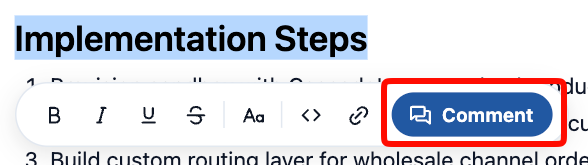
Highlight text, then click the Comment button
Highlighting any text in the body surfaces a Comment button at the end of the formatting popout — click it to start the thread. The highlighted text is a starting point, not the anchor: the comment is applied to the block the highlighted text is in, not to the words you selected.
This route is Editing mode only — highlighting text in Viewing mode does nothing, so use one of the two routes below instead.
From the node handle
In Editing mode, click a block’s node handle and choose Comment from its menu.
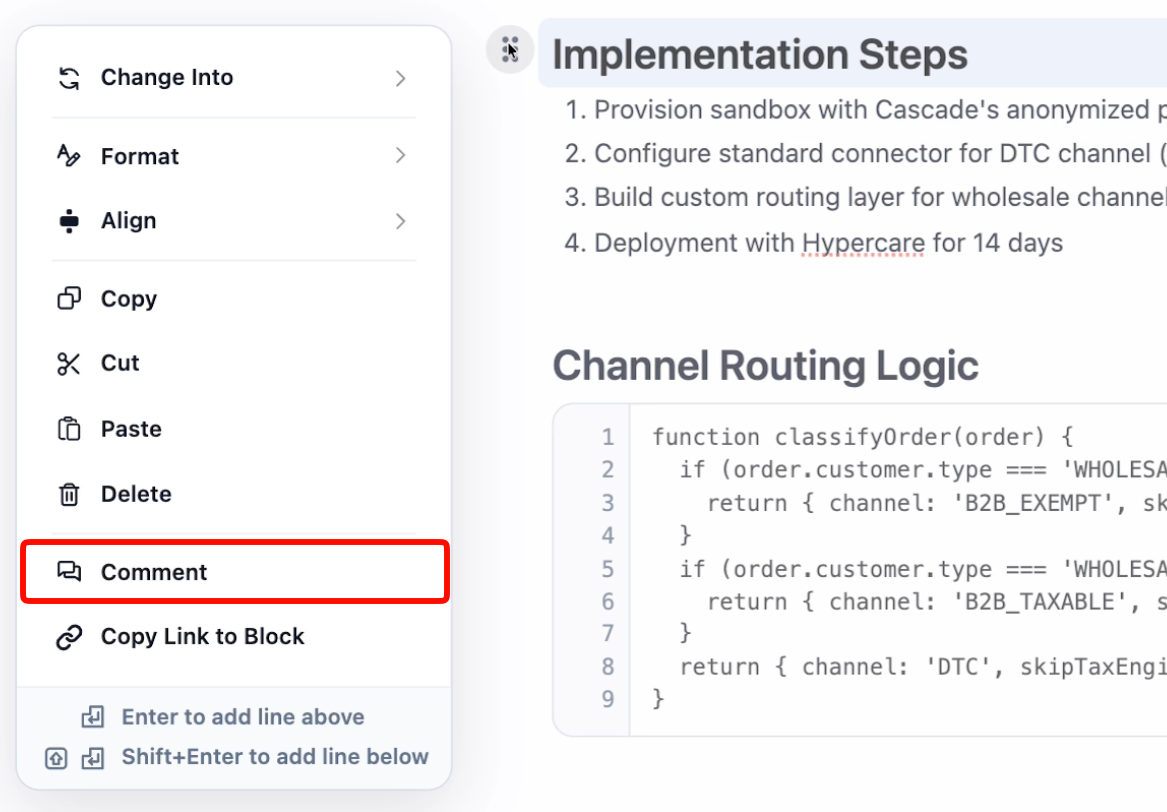
In Viewing mode there is no handle menu — the handle becomes a two-button pill instead, pairing Copy Link to Block with Comment. Click the comment half to start a thread on that block. Either way, this works on every block type.

From the comment button in the upper-right
The comments button sits in the upper-right, under the Related & Tags drawer. Hover it and a + appears — click that to start a new comment. With the comments sidebar already open, click the New Comment button just underneath the Comments header instead.
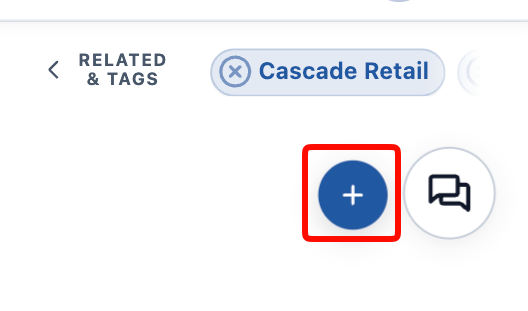
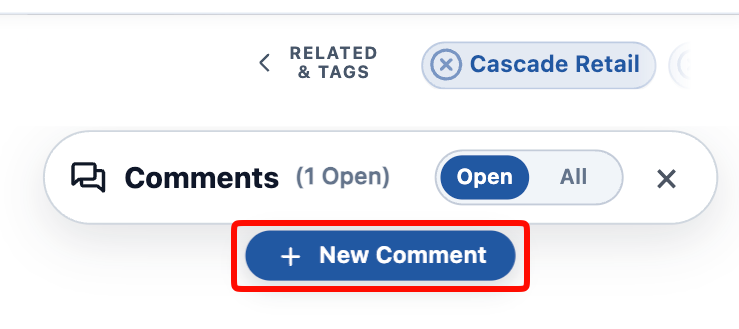
Starting from here, you choose the anchor first: every comment must be anchored to a Document block, so pick the block you want the comment on, and the empty comment box then appears, ready for you to type into and save.
Mentions inside comments
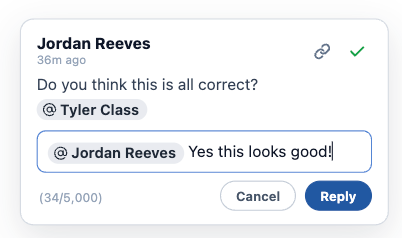
Typing @ inside a comment searches both people and records. The two have sharply different consequences, and this is the most important thing on the page.
Mentioning a person
- Search returns only active users who hold a Folio Docs license.
- Inserts a User Mention — the same chip type as a User Mention in the Document body, styled in gray with the @ symbol before the person’s name.
- They receive a notification.
- They are automatically granted read-only access to the Document, so the notification’s link actually opens for them.
Mentioning a colleague in a comment shares the Document with them. Re-mentioning the same person does not duplicate the access, and the Document’s owner is skipped since they already have it.
You can always mention a user in a comment. User Mentions in the Document body require your admin to have made User a Linkable Object; comment mentions have no such gate and work in every org. See Special case: the User object.
Read-only access from a mention is exactly that — it does not let them edit the Document.
Mentioning a record
- Inserts a reference only — a link out to that record from within your comment text.
- It creates no relationship. The record does not appear in the Related & Tags drawer, is not linked to the Document, and nothing is shared.
This is the opposite of a Record Link in the document body, which does create a relationship. Same @ key, same search, very different result — the difference is whether you’re typing in the body or in a comment.
Mentioned names display the record’s or person’s current name, so renames stay accurate. If a reader lacks access to a referenced record, they see the name as it was stored rather than a broken link.

How threads anchor to content
- A comment anchors to a specific block, and threads track that block through ordinary editing — typing around it, moving it, reformatting it.
- Copied and pasted content never carries its comments. Pasting produces new blocks, so threads don’t come along.
Deleting a commented block deletes its thread. This is applied when the Document saves. If a thread matters, resolve it — or re-anchor it — rather than deleting the block it’s attached to.
Moving a thread to a different block
You can re-anchor a comment rather than deleting and rewriting it.
Click the anchor icon on a comment to enter Re-Anchor mode.
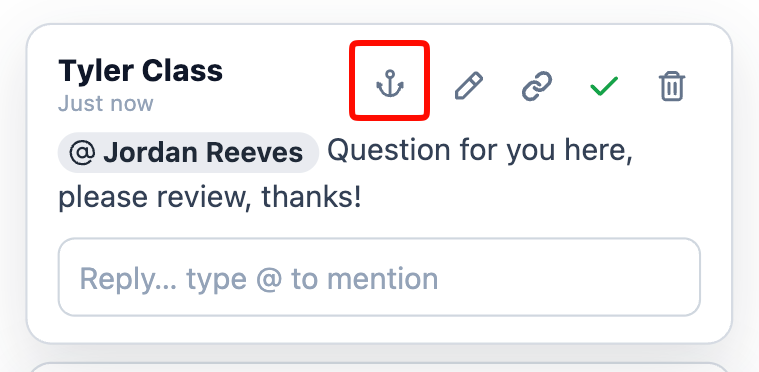
The sidebar prompts you to pick the new block, and the Document marks what’s what: the comment’s current anchor is outlined in green, and the block you’re hovering is outlined in blue. Click one and the comment moves to it, or press Escape to cancel.

The thread comes with it — every reply, and every resolve and reopen event. Use this when content moves during editing, or when a comment ends up attached to the wrong block, so the discussion is preserved rather than recreated.
Replying, resolving, and reopening
- Reply within a thread to keep discussion together rather than starting a parallel one.
- Resolve with the green check in the comment box’s upper-right corner.
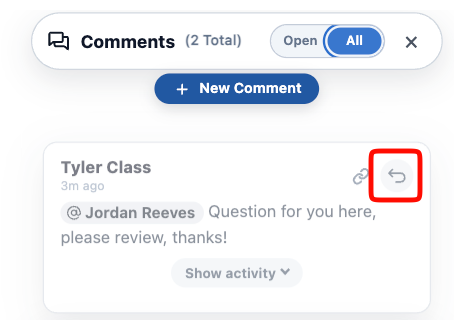
- Resolved threads are read-only. Attempting to reply returns “This thread is resolved. Reopen it to reply.” Editing and deleting existing comments is likewise blocked while a thread is resolved. To continue the discussion, switch the sidebar to All — resolved threads are hidden under Open — and click the reopen arrow on the thread.
- An edited comment is marked. Editing your own comment appends (Edited) beside its timestamp, so a thread never quietly changes under the people reading it. Everyone involved in the thread — its creator, its participants, and the Document’s owner — is notified that you edited it.
- Resolve and reopen events are recorded in the thread, so its history shows who resolved it and when.
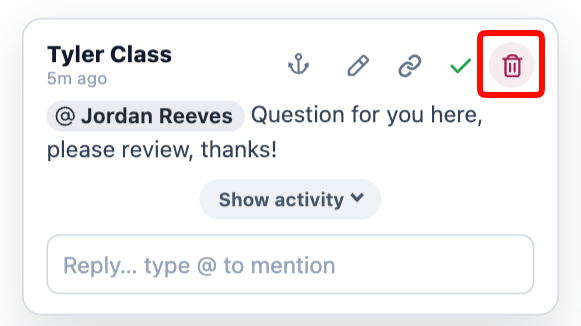
- You can edit or delete only your own comments.
Deleting the first comment in a thread deletes the whole thread, including every reply beneath it — including replies written by other people. Deleting a reply removes only that reply. If a thread has useful discussion in it, resolve it rather than deleting the comment that started it.

Finding and navigating comments
- Floating comment boxes appear beside their anchor blocks and scroll with the Document, showing while their block is on screen. Clicking one focuses it and centers the Document on its anchor.
- The comments panel opens from the comments button and has an Open / All toggle — Open shows unresolved threads only, All includes resolved ones.
- Comment pills. With the panel closed, a small dark-blue pill sits in the right margin beside each block that has an unresolved thread. Hovering shows how many comments it holds and who posted them; clicking opens the panel focused on that thread.
- Copy Link to Comment produces a direct link to a specific thread — the way to point a colleague at one comment rather than the whole Document.
- Copy Link to Block does the same for a block itself, without involving comments. It’s on the node handle menu, and is available in Documents on blocks that carry an anchor.
- Unread comments carry a red dot. Any comment written by someone else that you haven’t seen yet shows a red dot — whether it’s on an open thread, a resolved one, or a reply collapsed out of view. Viewing the comment clears its dot, along with the red dot on the Document header’s bell and the notification in the Notifications tab on the Folio Docs home page.
Tip: navigate comments from the keyboard. With a comment selected, the ↑ and ↓ arrow keys jump up and down through the Document’s other comments, and Enter starts a reply on the selected comment.

Comments update in real time
Comment activity propagates to everyone viewing the Document immediately — new comments, replies, edits, deletions, and resolve/reopen all appear without a refresh. There is no setup required.
Together with View and Edit at the Same Time, this is what collaboration looks like in Folio: one person editing, everyone else reading and commenting live.
Notifications from comments
Comment activity is what generates most Folio notifications — mentions, replies, and threads being resolved or reopened all notify the people involved. How they reach you, how to work through them, and how to get them by email are covered in Act on Notifications.
Related: Act on Notifications · Insert Mentions with @ · Using the Folio Document Editor · View and Edit at the Same Time · Browse the Folio Docs home page
View this page as Markdown — for LLMs and plain-text tools.