
Admin Panel — Tags
Tags are free-form labels users apply to Documents from the Related & Tags drawer, and they’re created inline as people type. That’s good for adoption and bad for consistency — left alone, an org accumulates “QBR”, “Quarterly Business Review”, and “Quarterly Business Review (QBR)” as three separate Tags for the same thing. (Case alone won’t do it — Tag uniqueness is case-insensitive, so “qbr” and “QBR” are already the same Tag.)
The Tags tab of the Folio Admin app is where you curate that vocabulary org-wide.
What you can do
From the Tags tab you can:
- Review every Tag in the org in one list.
- View usage counts — how many Documents each Tag is applied to.
- Set a default Tag color.
- Create a Tag directly, rather than waiting for a user to coin it.
- Rename a Tag. The new name applies everywhere the Tag is used — every Document carrying it picks up the change, since they all reference the same Tag record.
- Merge several Tags into one — every link repoints to the surviving Tag.
- Delete Tags, optionally applying one or more replacement Tags to every link the deleted Tags held.
Usage counts are the place to start. A Tag applied to one Document is usually a typo or a synonym of something else; a Tag applied to hundreds is part of your org’s real taxonomy and should probably get a color.
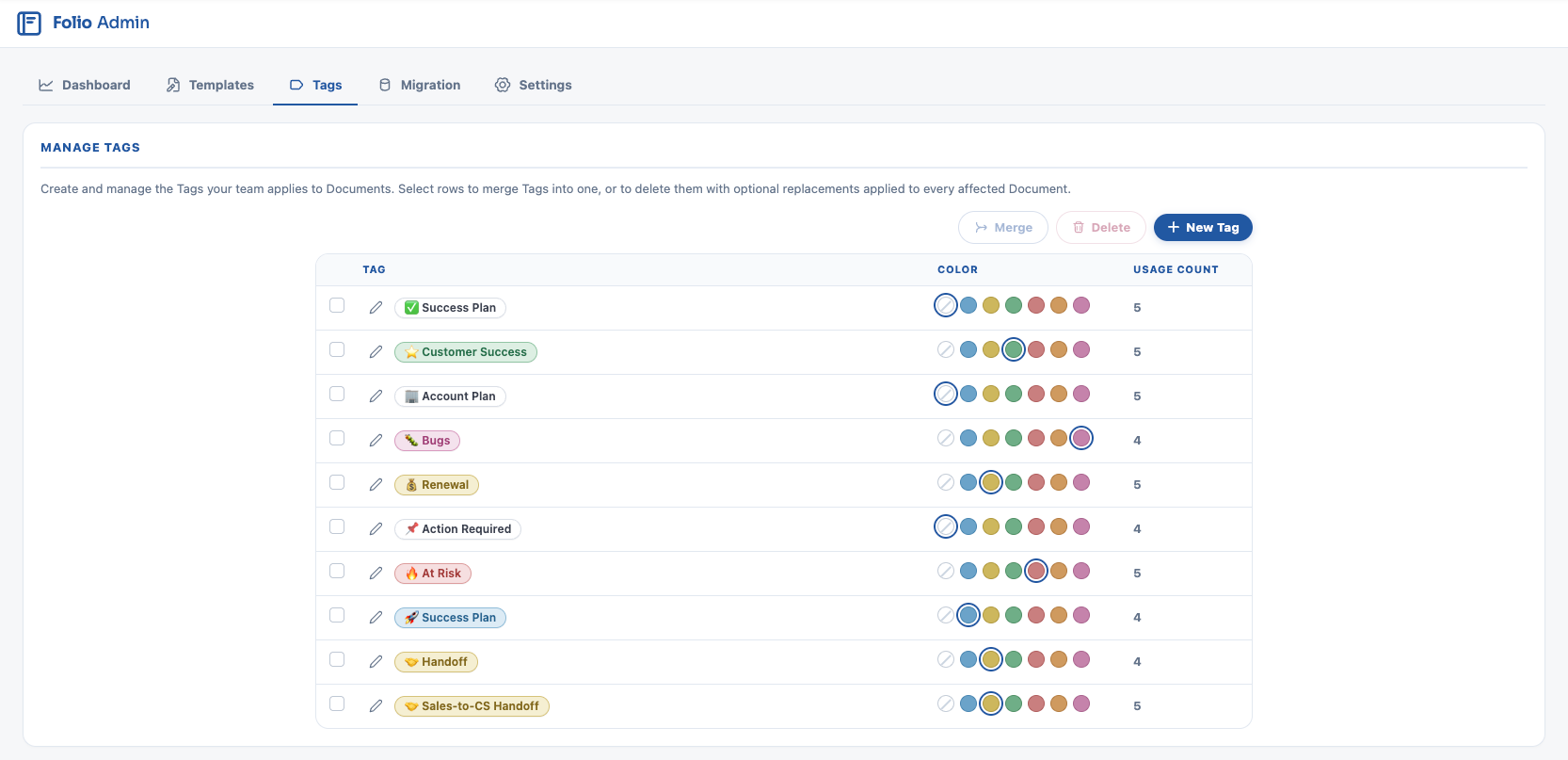
Tag colors
Folio uses a fixed palette of six colors: blue, yellow, green, red, orange, and pink. Leaving the color blank means no color.
Emoji in Tag names are supported, and a common practice. Putting an emoji at the left of a Tag name gives users a second visual cue beyond color — a bug for system defects, a pencil for meeting notes, a warning sign for at-risk accounts. It works well alongside the six-color palette: color groups Tags into broad categories, and the emoji identifies the specific one at a glance.
Colors are set from the swatches in each row of the Tags list. Behavior then depends on whether an admin has set one:
- When an admin sets a color, every pill of that Tag renders in it everywhere in the org, and per-document color choices are disabled for that Tag. Users can still apply and remove the Tag; they just can’t recolor it.
- When no admin color is set, the Tag defaults to white, and users may pick a color on their own instance of the Tag.
This gives you a deliberate two-tier system. Set colors on the Tags that carry org-wide meaning — a red “At Risk”, a green “Renewed” — so they mean the same thing on every Document anyone opens. Leave the long tail uncolored so individuals can organize their own work however they like.
Setting an admin color is retroactive and org-wide. It overrides any color individual users had already chosen on their own instances of that Tag. Check whether users have already colored a Tag themselves before standardizing it.
Merging Tags
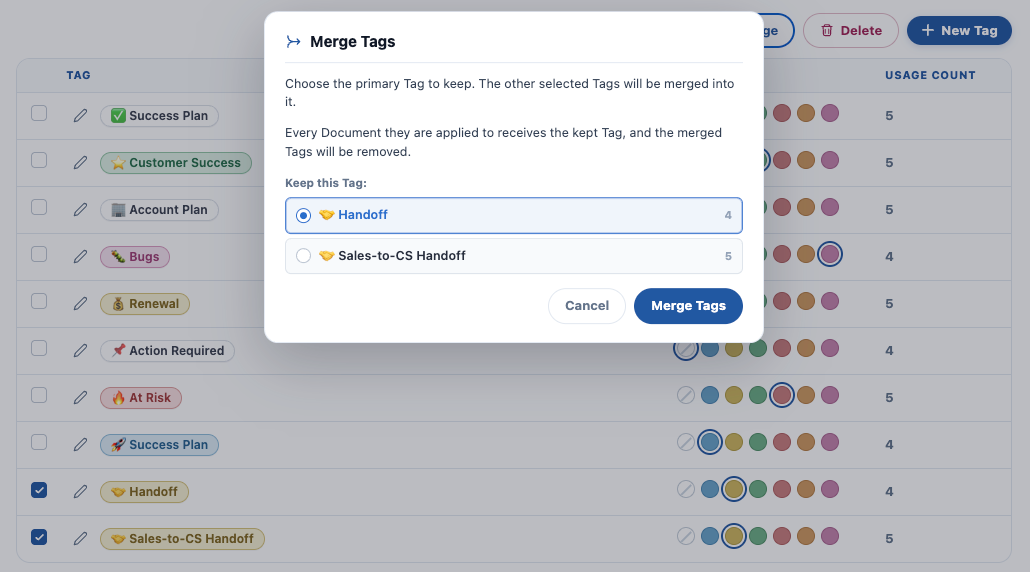
Merging is the cleanup tool for duplicates and synonyms. Select the Tags to merge, choose the one that survives, and every Document↔Tag link from the merged Tags repoints to the survivor.
Select the Tags in the list, click Merge, then pick the primary Tag to keep. The dialog shows each candidate’s usage count, so you can keep the one already most established. Every Document the merged Tags were applied to receives the kept Tag, and the merged Tags are removed.
Nothing is lost from the Documents themselves — a Document tagged “Quarterly Business Review” ends up tagged “QBR” instead. Merging is the right tool whenever the Tags mean the same thing and you simply want one name for the concept.
Deleting Tags
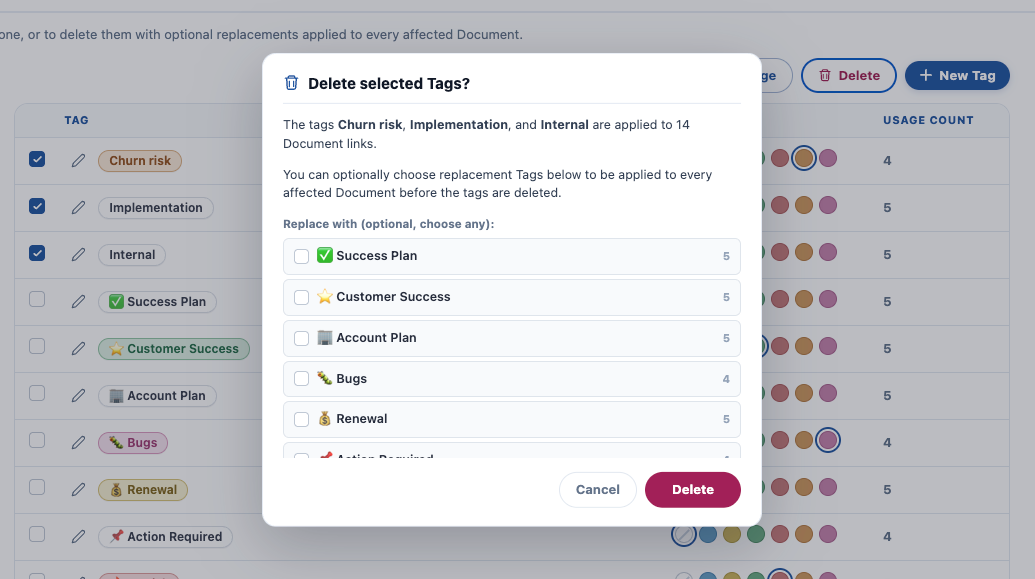
Deleting removes a Tag along with every link to it. You can select several Tags and delete them together, and optionally apply one or more replacement Tags to every link the deleted Tags held — which lets you retire Tags without leaving the Documents that used them uncategorized.
The confirmation tells you the blast radius before you commit. It names the Tags being deleted and how many Document links they account for between them, and lists candidate replacements with their own usage counts.
Merge vs. delete-with-replacement:
- Merge when the Tags are the same thing under different names — “Quarterly Business Review” and “Quarterly Business Review (QBR)” into “QBR”.
- Delete with a replacement when you’re restructuring the vocabulary and the mapping isn’t one-to-one — retiring “FY24 Planning” in favor of “Planning” plus “Archive”.
- Delete without a replacement only when the Tag was genuinely meaningless.
Merges and deletes apply across every Document in the org and cannot be undone from the Admin Panel. Check the usage count before you act on a Tag with a large number of links.
Tags elsewhere in Folio
- Users apply and remove Tags in the Related & Tags drawer of the Document Editor.
- Tags are a filter dimension on the Folio Docs home page, under the Advanced Filters toggle — which is what makes a consistent vocabulary worth maintaining.
- Templates can carry Tags that are applied to every Document created from them — the most reliable way to keep a Tag used consistently. Tags arriving this way are locked on the resulting Document and cannot be removed by users, so a Template Tag is genuinely enforced rather than merely suggested. Choose them deliberately: it’s permanent for every Document that Template produces.
- Automation can apply Tags with the Folio: Apply Tag to Document invocable action, and query them with Folio: Get Document Junctions.
- For bulk Tag changes beyond what this tab offers, Tags and their links can be edited with a data loader — see Update Data in Bulk.
Related: Use the Admin Panel · Templates · Settings · Update Data in Bulk · Using the Folio Document Editor
View this page as Markdown — for LLMs and plain-text tools.