
Admin Panel — Dashboard
The Dashboard tab is the first tab of the Folio Admin app. It reports on how much Folio is being used, which objects and Templates it’s being used with, and which packaged automations are running.
Everything on this tab is read-only reporting. Nothing here changes configuration — for that, see the Settings tab.
Print Dashboard produces a print-friendly rendering of everything below — the same tiles, trends, and charts laid out for paper or PDF — which is the practical way to take adoption numbers into a renewal or a steering meeting.
KPI tiles
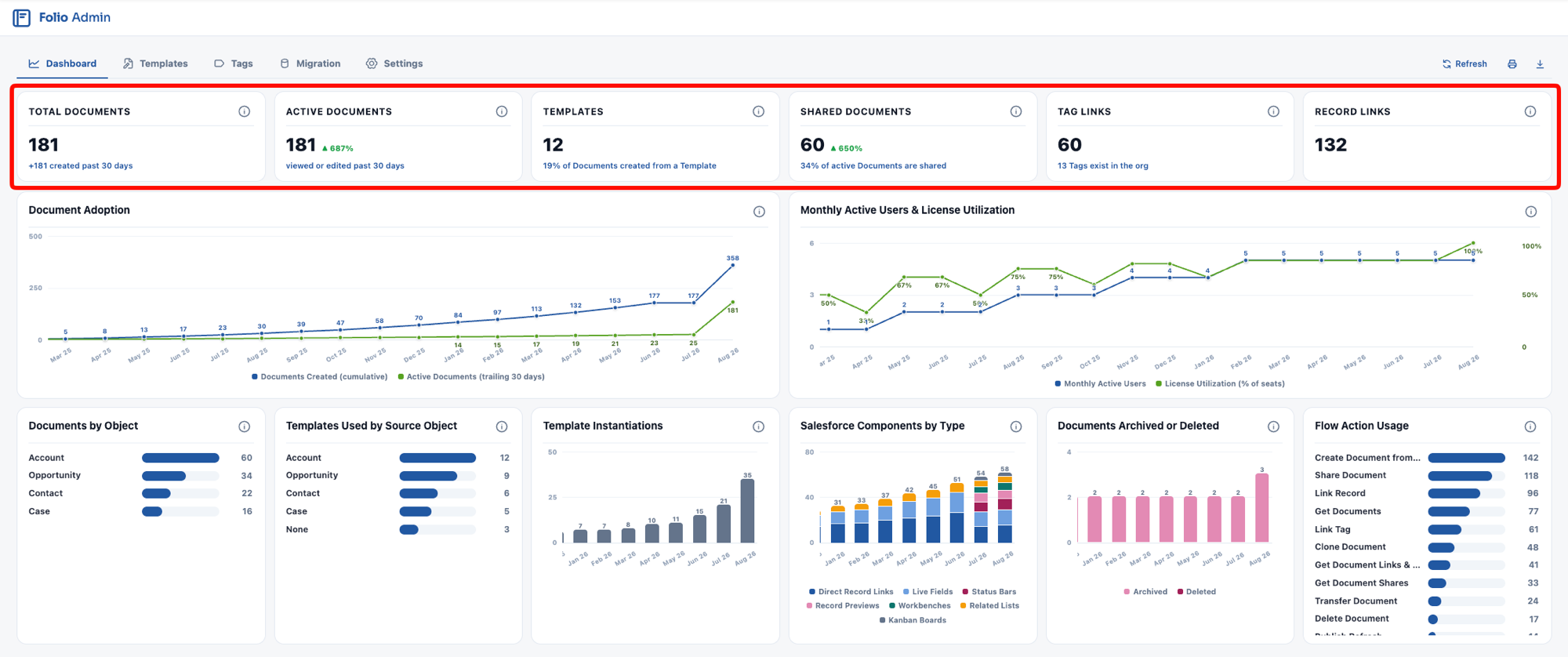
Six tiles run across the top of the Dashboard.
| Tile | What it counts |
|---|---|
| Total Documents | Every Document in the org, active and archived. Templates are not counted. The subtext shows how many were created in the past 30 days. |
| Active Documents | Documents viewed, edited, or created in the past 30 days. |
| Templates | The total number of Templates. The subtext shows what share of all Documents were created from a Template. |
| Shared Documents | Documents shared with at least one other user — that is, Documents that aren’t private to their owner. The subtext shows what share of active Documents are shared. |
| Tag Links | Unique Document↔Tag links. The subtext shows how many distinct Tags exist in the org, which is a much smaller number — one Tag can account for many links. |
| Record Links | Unique Document↔record links. The subtext shows how many were linked in the past 30 days. |
A few things worth knowing when you read these numbers:
- Total Documents includes archived Documents. If your org has hard delete disabled — the default and the recommendation — deleted Documents are archived rather than removed, so they stay in this count. The gap between Total Documents and Active Documents is not all abandonment; some of it is archived content.
- Templates are excluded from Document counts everywhere on this tab, so Template authoring never inflates adoption numbers.
- The daily snapshots behind these charts are written by a nightly job. If Background Jobs is disabled for a period, the Dashboard has a permanent gap for those days — point-in-time state can’t be reconstructed after the fact.
- Record Links counts links, not Documents. A single account plan linked to an Account, an Opportunity, and two Contacts contributes four Record Links.
- Each tile carries a trend flag — ▲, ▼, or no change — comparing the past 30 days against the 30 before them. Movement under 2% reads as no change, so the flag doesn’t twitch on noise.
- Every tile and chart has an ⓘ bubble explaining exactly what it counts and what its trend compares. Hover it before drawing conclusions from a number; several metrics count links rather than Documents.
Adoption charts
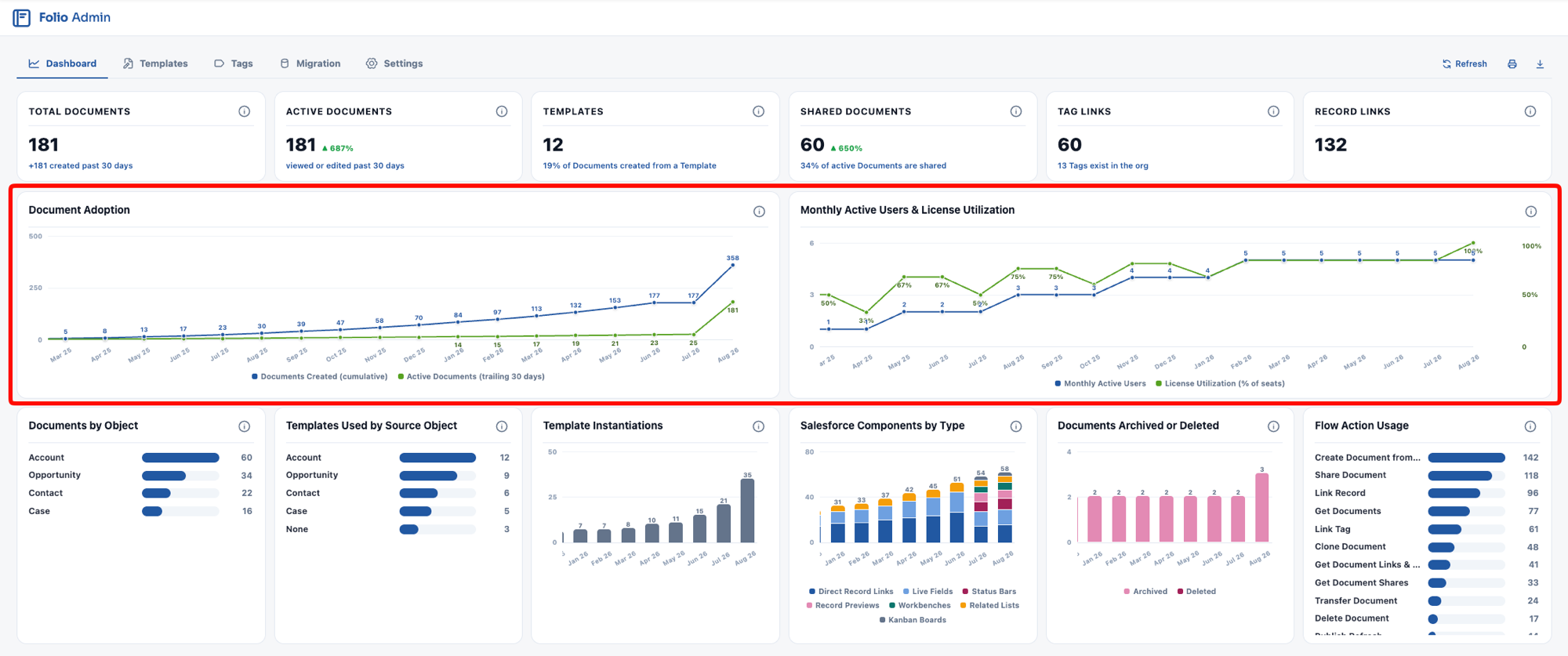
Below the tiles sit two line charts, side by side. They measure adoption on two separate axes — document adoption on the left, user adoption on the right — and are most useful read together. Rising documents with flat users indicates a small number of users creating most of the content. Rising users with flat documents indicates people opening Folio without creating anything in it.
Document Adoption
- Blue — Documents Created: the cumulative total of Documents created, so this line only ever climbs. Its slope is what matters: a steepening curve means creation is accelerating.
- Green — Active Documents: Documents viewed, edited, or created on a trailing 30-day basis. Unlike the blue line, this one can fall — and a falling green line against a rising blue line means Documents are being created and then abandoned.
Monthly Active Users & License Utilization
- Blue — Monthly Active Users: the count of distinct users who viewed or edited a Document in that month.
- Green — License Utilization: monthly active users as a percentage of your provisioned Folio Docs seats.
License Utilization is the number to watch at renewal: it tells you whether the seats you’re paying for are the seats being used. If utilization sits low while monthly active users climbs, you have room to onboard more of the org before buying more licenses.
Usage breakdowns
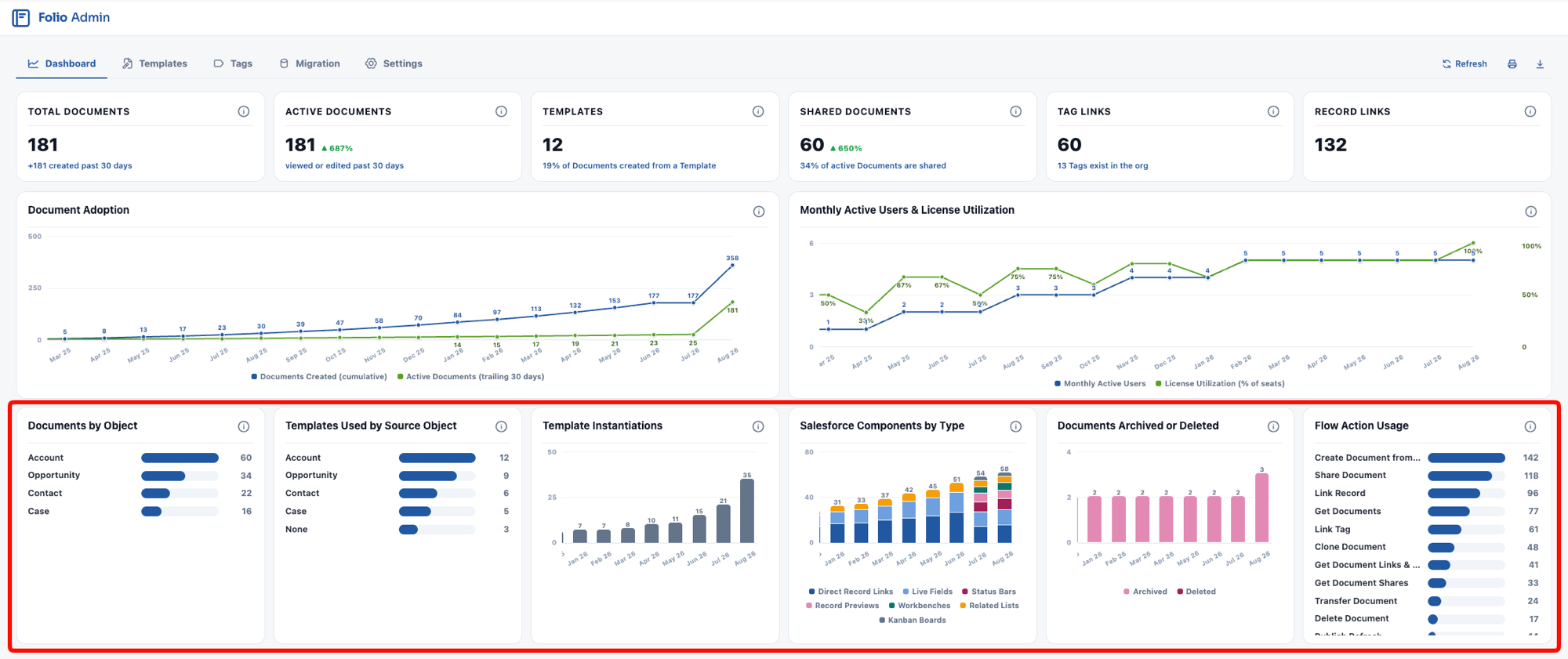
Six more components sit below the adoption charts, breaking usage down by object, Template, component type, automation, and email digest adoption.
Documents by Object
Record links grouped by the object of the linked record. This is the clearest picture of where Folio is actually being used in your CRM — whether it’s an Opportunity tool, a Case tool, or something your team has taken in an unexpected direction.
Use it to sanity-check your Linkable Objects configuration. An object you enabled that never appears here is configuration overhead with no return; an object your users keep asking about that isn’t listed may need enabling.
Template Instantiations
A bar chart of Template instantiations by month, stacked by the Source Object of the Template each one came from, so a single chart answers both how much Template use there is and which objects it’s happening on. None covers Templates with no Source Object set; Other covers instantiations whose Template can no longer be resolved. Read alongside the Templates KPI tile. A large Template library with few instantiations can mean several things: users can’t find the Templates, don’t know they exist, don’t know how to use them, or have looked and didn’t find them valuable. Each has a different fix, so it’s worth asking rather than assuming.
This chart also measures process compliance. If your team has obligatory Template usage requirements — every deal over $50k must have a Close Plan at the Negotiation stage, say — this is how you find out whether people are actually following the process.
Salesforce Components by Type
A stacked bar chart by month, stacked by type. It tracks all seven kinds of Salesforce content a Document can hold — both inline mentions and all five Salesforce components:
Direct Record Links · Live Fields · Status Bars · Record Previews · Workbenches · Related Lists · Kanban Boards
This measures whether people are using Folio as a live extension of Salesforce or just as a place to type. Documents carrying these stay current on their own; Documents without them go stale like any other file.
Documents Archived or Deleted
A stacked bar chart by month, split into Archived and Deleted.
If hard delete is disabled — the default and the recommendation — this chart normally shows Archived only. A Deleted bar in an org with hard delete disabled means Documents were removed some other way, such as a raw Flow Delete Records element. See the guidance on deleting Documents for why that should always go through the Folio: Delete Document action instead.
Email Digest Settings
A donut chart of how your licensed active users have their email digest frequency set — hourly, twice daily, daily, or off — with the user count in the center and a legend giving each slice’s count and percentage. Unlike the other breakdowns this one is read live rather than from rolled-up statistics, so it reflects the org as it stands right now.
Users who have never opened the setting count as Hourly, since that’s the default, and a note under the legend says how many of the Hourly slice are there by default rather than by choice. A large default share means the frequency is working for people or that nobody has noticed it — the Digest Link Opens figure below the legend is what tells the two apart.
Digest Link Opens (past 30 days) counts clicks from a digest email into Folio over the trailing 30 days, with a trend against the 30 before it. Near-zero opens alongside a large Hourly slice is the signal that the digest is being ignored rather than relied on.
Flow Action Usage
Invocations of each packaged Folio Flow action over the past 12 months, including actions that have never been used.
Actions with zero invocations are listed as well, so the chart doubles as a list of available automation the org has not yet adopted. See Automate with Invocable Apex for what each action does, and Review Invocable Apex Use Cases for worked examples.
Related: Use the Admin Panel · Templates · Tags · Settings · Automate with Invocable Apex
View this page as Markdown — for LLMs and plain-text tools.