
Admin Panel — Settings
The Settings tab of the Folio Admin app controls how Folio Docs behaves across the org. Documents work from the moment the package is installed — but choosing your Linkable Objects, selecting Linkable Fields, and turning on Background Jobs is what unlocks the real value: live Salesforce data in the page, search across every Document, and sharing that follows your records.
Who can change what
Settings are gated by Salesforce system permissions, not by the Folio Docs Administrator permission set alone. Holding Folio Docs Administrator gets you into the Admin Panel; it does not by itself let you change every setting on this tab.
The gating works like this:
| Setting group | Required permission |
|---|---|
| Choose Linkable Objects and Choose Linkable Fields | CRUD on the Folio Configuration Custom Setting only — grantable to Folio Admins who are not Salesforce Administrators. |
| Org-level Configuration — Automatic Team Sharing, Automatic Record Linking, Delete Permissions | Customize Application |
| Asynchronous Processing | Customize Application and Modify All Data |
Asynchronous Processing needs the extra permission because it reschedules and aborts scheduled jobs owned by other users — an operation Salesforce reserves for Modify All Data.
So the accurate summary is: a Folio admin without those system permissions can still use the Dashboard, manage Templates and Tags, and configure Linkable Objects and Linkable Fields. The remaining Settings are visible to them but read-only.
When that’s the case, the Admin Panel shows a banner reading:
Most of the settings below require Salesforce System Administrator permissions and are shown as read-only. Contact your Salesforce Administrator to change them.
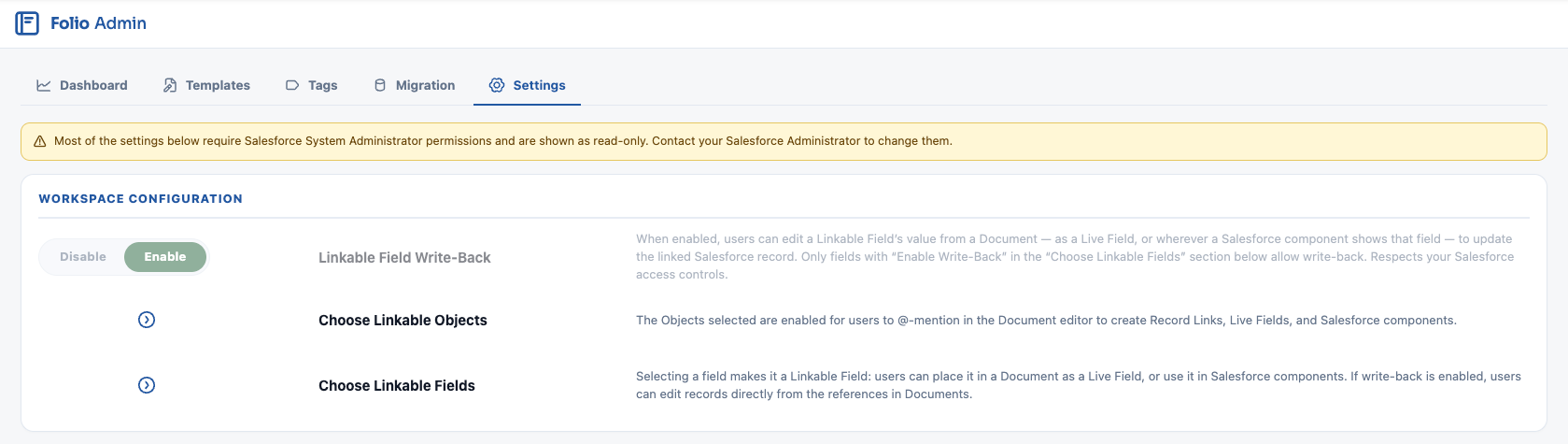
Workspace Configuration
Linkable Field Write-Back
The org-wide master toggle — Disable or Enable — for whether Live Fields and the Salesforce components can write data back to Salesforce records at all.
When disabled, Live Fields and components still display record data everywhere, but nothing in Folio can push a change back to Salesforce. When enabled, write-back is then controlled field by field in Choose Linkable Fields below.

Choose Linkable Objects
Expand the section and drag objects from Available Objects on the left into Selected Objects on the right. Both panes have a search box, which matters in an org with hundreds of objects, and each row shows the object’s label above its API name so you can tell similarly named objects apart.
Enabling an object lets users:
- Create Record Links to records on that object inside Documents
- Link Documents to records on that object from the Related & Tags drawer
- Reference Live Fields from a record on that object
- Use the object in any of the five Salesforce components — Status Bar, Record Preview, Related List, Workbench, and Kanban. For a component that spans two objects, such as a Related List of Cases under an Account, both the parent and the child object must be linkable
Each selected row carries an Auto-Share Level control — None, Read, or Edit. Whenever a Document is linked to a record of that object, the record’s Owner automatically gets that level of access to the Document.
Auto-share is also re-applied when a linked record’s owner changes — see Set up Real-Time Updates.
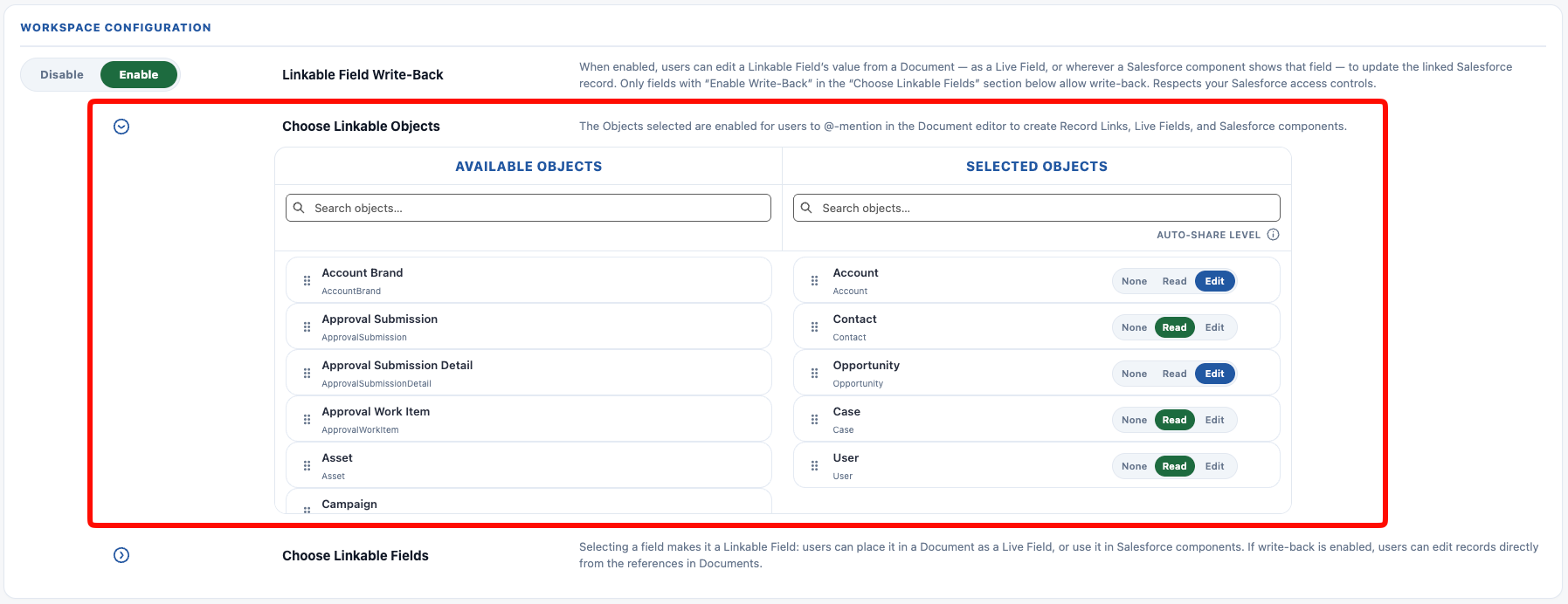
Special case: the User object
For the User object, Auto-Share Level governs something different — @-mentions of people. Mentioning a user directly in a Document body inserts a User Mention — the gray @ chip — and shares the Document with them at the configured level.
If User is not among your Selected Objects, users cannot be @-mentioned in Document bodies at all. They can still be mentioned in comment threads; only body mentions are affected. Enabling User is what makes ”@ someone in the doc and they get access” work.
Queues
A Queue can own a Folio Document outright, and a Queue can receive auto-share from a record it owns. Both paths depend on the same prerequisite.
A Queue must list Folio Document among its supported objects, in addition to whatever functional object it already supports. Without that, the Queue cannot be made a Document Owner, and auto-share based on the linked record’s ownership cannot reach it.
Set it on the Queue itself: Setup → Queues → the Queue → Supported Objects.
| Record owner | Auto-Share setting | Result |
|---|---|---|
| Queue | None | Fine — the Queue does not need Folio Document, and there is no impact. |
| Queue | Read or Edit | Queue without Folio Document → auto-share fails. Queue with Folio Document → auto-share works, granting Read/Edit to Queue members and updating automatically as membership changes. |
The share targets the Queue itself, and members inherit access through standard Salesforce group semantics — which is why membership changes are picked up automatically with no additional configuration. Add or remove someone from the Queue and their access to every Document linked to that Queue’s records follows.
The same applies when a Queue owns a Document directly rather than through a linked record: ownership sits with the Queue, and its members hold the owner’s access for as long as they are in it.
Choose Linkable Fields
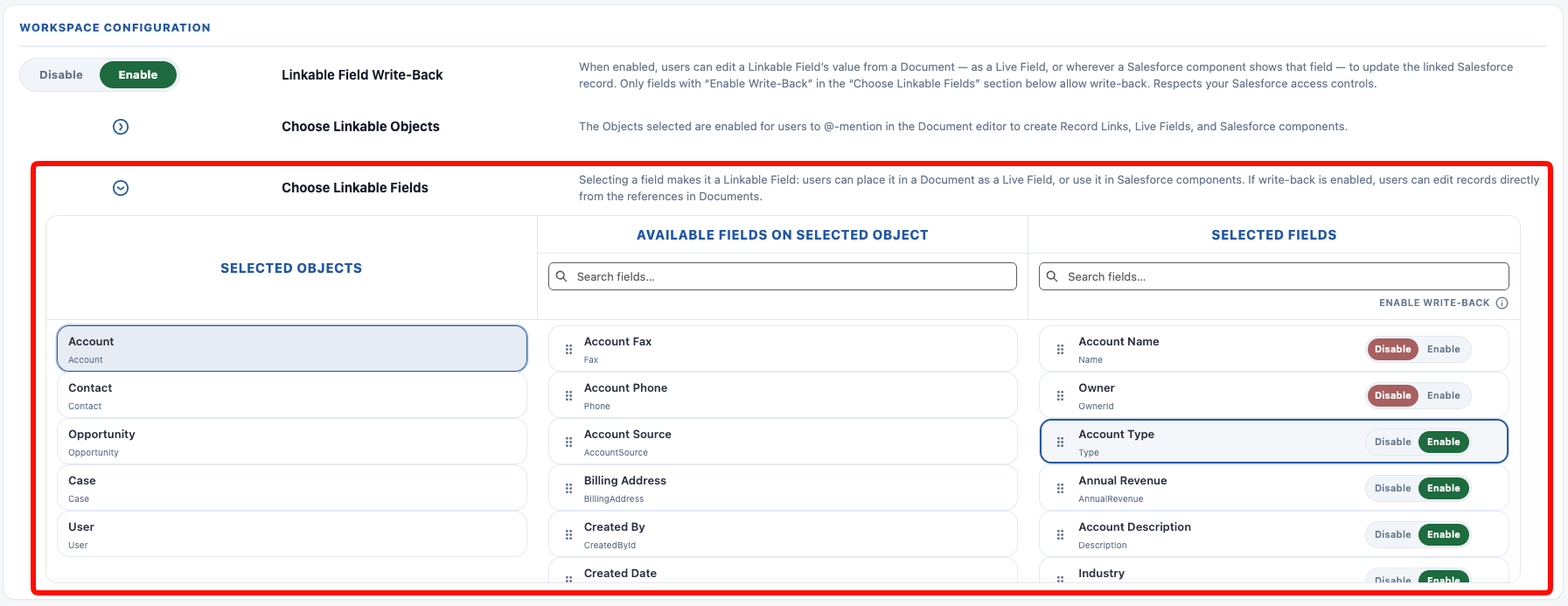
For each object selected above, choose which of its fields Folio is allowed to use.
Linkable Field is the setting; Live Field is the node. A Linkable Field is what you enable here — permission for Folio to reference that Salesforce field at all. A Live Field is one of the things that permission unlocks: an inline chip in a Document showing that field’s value. The same Linkable Field also feeds the five Salesforce components. Enabling a field here doesn’t put it anywhere; it makes it available to be put somewhere.
- Select an object in the left-most Selected Objects column.
- Drag fields from Available Fields on Selected Object into Selected Fields.
Both field panes have a search box, and every row shows the field label above its API name — useful when several fields share a label.
This is also where the fields available to Templates come from.
The fields you select here become available everywhere Folio surfaces Salesforce data:
- Live Fields — inline chips inserted in a Document body via the
@menu - Record Preview display fields
- Status Bar status fields — picklists, numbers, currencies, and percents only
- Related List columns — only fields enabled on the child object are available
- Workbench columns
- Kanban tile fields
Each selected field carries its own Enable Write-Back control, set to Disable or Enable independently of every other field.
The two-gate rule
Write-back requires both gates to be open: the org-wide Linkable Field Write-Back toggle and the per-field Enable Write-Back control.
With the field-level gate off, the field still displays everywhere it’s configured — but it is read-only everywhere:
- No Status Bar updates
- No Record Preview inline edits
- No Related List or Workbench inline edits
- No Kanban status drag-and-drop
- No Live Field edits in the Document body
This is what gives you precise control. You might want reps editing an Opportunity’s Amount from a Document but never its Stage — enable write-back on one and not the other.
Live Field write-back always respects Salesforce object-, record-, and field-level access. Folio will never give a user access they do not already have in Salesforce. These settings can only ever restrict what a user could otherwise do, never expand it.
Asynchronous Processing
A single Background Jobs toggle — Disable or Enable. While it’s enabled, the username of the running user appears underneath the toggle, so you can always see which user the jobs are executing as.
This should be on for Folio to work properly. Enable it once during initial setup and leave it on.
Enabling it schedules nine jobs. You don’t need to manage these individually, but it helps to know what stops when the toggle is off.
| Job | Cadence | What it does |
|---|---|---|
| Indexing | Every 5 minutes | Decodes Document content, extracts text, and builds the search token index. Also runs a catch-up sync of Account, Opportunity, and Case team shares. |
| Junction sync | Hourly | Refreshes each Junction’s stored parent-record name with the linked record’s current Name. This powers search-by-record-name — without it, a renamed record stays invisible to search. |
| Usage rollup | Nightly | Writes the usage statistics behind the Dashboard — daily point-in-time snapshots plus monthly aggregates. |
| Log retention | Nightly | Deletes Folio Log records past their retention period. |
| Alert retention | Nightly | Deletes notifications past the alert retention period. |
| Export retention | Nightly | Deletes export zip files past the export retention period. |
| Version maintenance | Nightly | Consolidates version history and purges versions past the retention period. |
| Archive purge | Nightly | Permanently deletes archived Documents past the archive retention period. |
| Email digest | Hourly | Emails each user their unread notifications at that user’s chosen frequency. Does nothing unless Notification Email Digest is enabled. |
The daily usage snapshots can never be reconstructed after the fact. If Background Jobs is off for a stretch, the Dashboard has a permanent gap for those days — the data isn’t recoverable later.
The user who enables it owns the schedule
Salesforce runs a scheduled job as the user who scheduled it, so whoever flips this toggle on becomes the running user for all nine jobs — and they have to stay an active Salesforce user for the jobs to keep running.
If that user is ever deactivated, every Folio background job stops. Nothing on this page reports it; the jobs simply stop producing results, so search results go stale, retention stops running, and the Dashboard stops advancing.
The fix is to reschedule under someone else. Any system administrator can open this tab, set Background Jobs to Disable, then back to Enable — that cancels the old schedule and recreates it under whoever is doing the re-enabling.
Only deactivation breaks it. If the scheduling user loses their Folio license or gets frozen, the jobs keep running normally. Freezing blocks login, not scheduled execution.
Enable it as an account that will outlast the person who installed Folio. A dedicated system automation or integration service account is the usual standard, since it isn’t tied to anyone’s employment and won’t be deactivated when someone changes roles or leaves. A long-standing system administrator account works too, and is the sensible choice in an org that doesn’t keep service accounts.
Either way, defer to your organization’s own operational principles for which account runs scheduled work — Folio has no requirement here beyond the account staying active. Whichever you pick, add the disable/re-enable step to your offboarding checklist for that user.
Disabling the toggle cancels all nine. That makes it genuinely useful for pausing or resetting jobs — turn it off and back on to reschedule everything cleanly — but an org running with it off will have stale search results, team shares that never apply, and a Dashboard that stops advancing.

Notification Email Digest
Folio can email each user their unread notifications on a recurring schedule. Two things are set here — whether digests run at all, and which address they come from. Users choose their own frequency; you don’t set it for them.
Send Email Digests
A Disable / Enable switch, and the master control: with it off, no digest is ever sent, whatever individual users have chosen.
This is separate from Background Jobs. Digests need Background Jobs on — that’s what schedules the hourly job behind them — but the reverse isn’t true. If you want everything else Folio runs in the background but no digest emails, leave Background Jobs enabled and set this one to Disable. It’s the one background job you can switch off on its own.
Users can still pick a frequency while digests are disabled org-wide. Their choice is saved and starts applying the moment you enable it, so turning digests on doesn’t require everyone to go set their preference first.
Send From
Digests are sent from an Organization-Wide Email Address, chosen from the dropdown. Only verified, unrestricted addresses appear; if the list is empty, create and verify one in Setup → Organization-Wide Addresses, then reopen the tab.
Unrestricted means “Allow All Profiles to Use this From Address.” For digest emails to send, the Organization-Wide Email Address must have that setting enabled when you create or edit it. An address restricted to selected profiles doesn’t appear in the dropdown at all — so if the address you just created is missing from the list, its profile setting is the first thing to check.
A dedicated address is the recommendation — something like [email protected], which makes the mail obviously Folio’s, keeps it filterable, and means a change to it affects nothing else. A shared operational address such as systems@ or operations@ works just as well if your company would rather not add another sender.
Name it “Folio Notifications.” An Organization-Wide Email Address carries a display name as well as an address, and that name is what recipients see in the From column of their inbox. Naming it for Folio makes a digest recognizable at a glance and easy to tell apart from every other system alert your org sends — which matters most on a shared systems@ or operations@ address, where the address alone gives no clue what the mail is about.
A digest can’t send without one. With digests enabled and no sender chosen — or a sender that has since been deleted — nothing goes out, and a banner appears at the top of this section reporting the failure.
Test Digest delivers one to you immediately, built from your own unread notifications from the last 7 days and sent regardless of your own chosen frequency — the quickest way to confirm the sender address works before turning digests on for everyone.

What users control
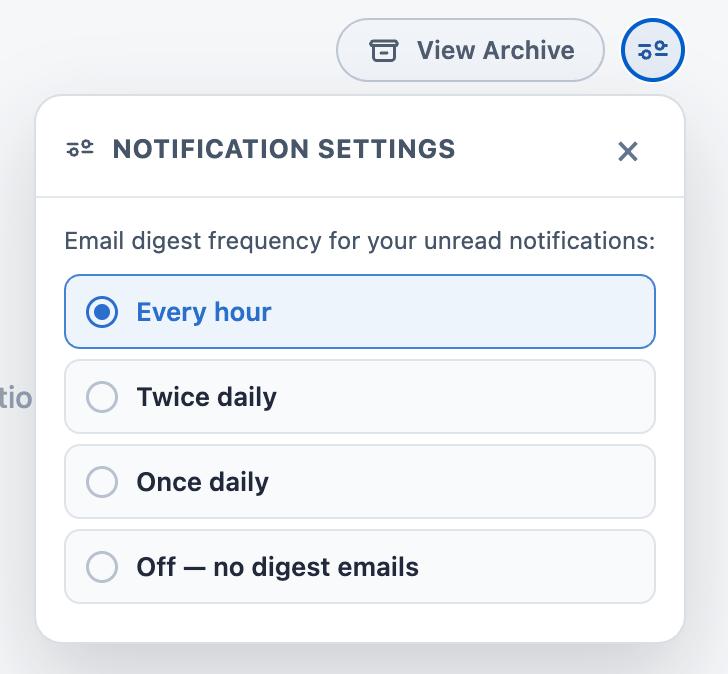
Each user sets their own cadence under Folio Docs home → Notifications → Notification Settings: Every hour, Twice daily, Once daily, or Off.
New users are on Every hour until they choose something else — digests are opt-out, not opt-in. Anyone who doesn’t want them can set their own to Off without involving you.
Digests contain only what a user hasn’t read, grouped by Document, and each recipient’s access is re-checked at send time — so a Document that was unshared between the notification and the digest never appears in the email. See Email digests for what users receive.
Whether anyone acts on them is measurable. Every link out of a digest is tagged, and the Dashboard reports both the spread of chosen frequencies and the total number of digest links opened.
Automatic Team Sharing
Three controls — Auto-share level with Account Team, with Opportunity Team, and with Case Team — each set to None, Read, or Edit. Each governs the default access granted to that record’s Team Members when a Document is linked to it.
When a Document is linked to an Account, Opportunity, or Case, the Document is automatically shared with the Team Members on that record at the configured level. Choosing None disables team-based sharing for that object.
Keeping sharing in sync over time. A batch job keeps Document sharing aligned with team membership as it changes. This sync is additive only:
- Team Members removed from a record do not lose Document access they already have.
- A user with higher access is never demoted — someone with Edit stays at Edit even if the team setting is Read.
- A user who previously had no access is upgraded to Read or Edit as the setting dictates.
New Team Members may take up to 5 minutes before linked Documents are shared with them, because this runs as a batch job rather than instantly.
This depends on Background Jobs being enabled. With Background Jobs off, the initial share still happens at link time, but ongoing membership changes are never picked up.

Automatic Record Linking
Two Disable / Enable toggles:
- Auto-link from Opportunity to Account — a Document linked to an Opportunity is also linked to that Opportunity’s parent Account.
- Auto-link from Contact to Account — a Document linked to a Contact is also linked to that Contact’s parent Account.
Important behavior:
- Auto-linking is additive only — the link to the Account is never automatically removed.
- It runs only at the moment the Document is linked to the source record, and is not maintained afterward. Moving an Opportunity to a different Account does not move the Document’s Account link.
If you need links to follow records as they move, build it with invocable Apex in Flow — the Re-link Documents when an Opportunity moves Accounts recipe covers exactly this.

Delete Permissions
A single Users can hard delete Docs toggle. Two states:
- Disabled (recommended, and the default) — deleting removes the Document from the user’s view but only sets an Archived flag on the record. Admins can still access archived Documents and un-archive them.
- Enabled — deleting permanently removes the record from Salesforce.
(In Apex and on the Folio Configuration Custom Setting, this setting is named Allow Document Hard Delete.)
Leaving hard delete disabled is the safer default for the same reason a Recycle Bin exists: users delete things they didn’t mean to, and a document layer that can’t recover them becomes a liability. The cost is that archived Documents accumulate — visible in the Total Documents tile on the Dashboard.
Archived Documents are listed on the Recycle Bin tab, where you can preview one and restore it in a click. Archived Documents are kept for 6 months by default, after which a nightly job purges them permanently — see Archived Document Retention.
This setting is also honored by automation: the Folio: Delete Document invocable archives instead of deleting when hard delete is disabled. A raw Flow Delete Records element does not — see Updating and deleting Folio data.

Advanced Settings
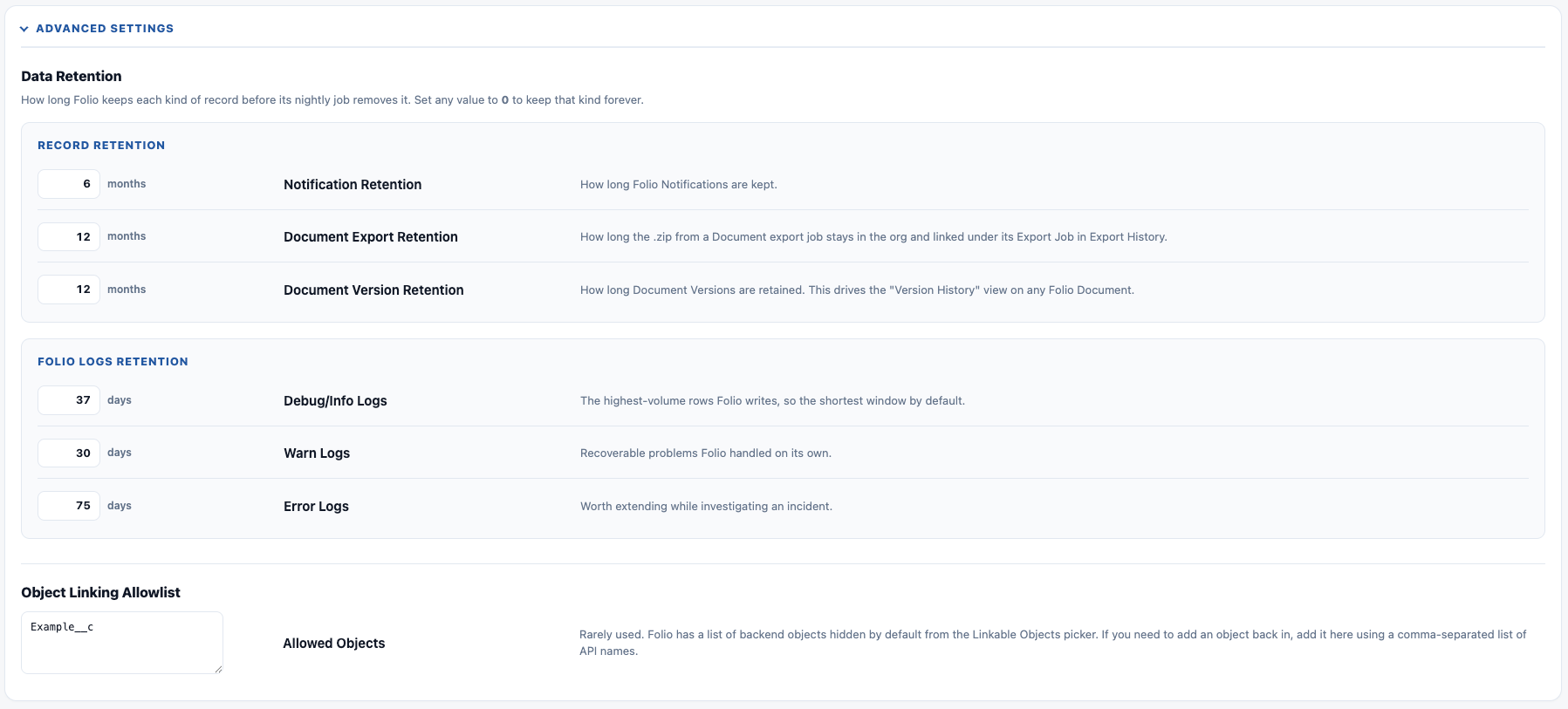
Advanced Settings is the last section on the Settings tab, collapsed by default. It holds the two things most admins never need to touch: how long Folio keeps records that accumulate, and which objects are eligible to be made linkable.
Data Retention
How long Folio keeps each kind of record before its nightly job removes it. Set any value to 0 to keep that kind forever.
Record Retention
| Field | Default | What it controls |
|---|---|---|
| Notification Retention | 6 months | How long Folio Notifications are kept. |
| Document Export Retention | 6 months | How long the .zip from a Document export job stays in the org and linked under its Export Job in Export History. |
| Document Version Retention | 12 months | How long Document Versions are retained. This drives the Version History view on any Folio Document. |
| Archived Document Retention | 6 months | How long archived Documents stay in the Recycle Bin before the nightly purge permanently deletes them. |
Folio Logs Retention
| Field | Default | What it controls |
|---|---|---|
| Debug/Info Logs | 7 days | The highest-volume rows Folio writes, so the shortest window by default. |
| Warn Logs | 30 days | Recoverable problems Folio handled on its own. |
| Error Logs | 90 days | Worth extending while investigating an incident. |
Usage event rows are a fourth tier with no setting. They’re the raw facts behind the Dashboard and are kept for two closed months after the nightly rollup compacts them into permanent monthly statistics, then removed. The Dashboard’s 30-day comparisons need that window, and the compacted monthly rows remain the permanent record regardless.
Only users with the Folio Docs Administrator permission set can access Folio Log records — see Handle Invocable Apex Errors for using them to debug automation.
Shortening Document Version Retention does not delete Documents. It removes older change-history snapshots only. Every Document and its current content is untouched; users lose the ability to compare against or restore from versions older than the window, and nothing else.
Version records are roughly two-thirds of all records Folio creates, which makes Document Version Retention the highest-leverage storage setting on the page — halving the window roughly halves Folio’s total storage footprint. See Data Storage in Folio.
Retention only runs when Background Jobs is enabled. The cleanup is handled by a nightly job, so with Background Jobs disabled these values have no effect and notifications, exports, versions, and logs grow without limit.
Object Linking Allowlist
A single Allowed Objects field.
Folio hides a list of backend objects from the Choose Linkable Objects picker by default. If you need to add one back in, enter it here as a comma-separated list of API names.
Rarely used — reach for it when an object you expect doesn’t appear in the Linkable Objects picker.
Related: Use the Admin Panel · Dashboard · Templates · Tags · Set up Real-Time Updates · Update Data in Bulk · Automate with Invocable Apex
View this page as Markdown — for LLMs and plain-text tools.