# Insert Mentions with @
Type @ to insert Record Links, Live Fields, User Mentions, and record-anchored Salesforce components into a Document.
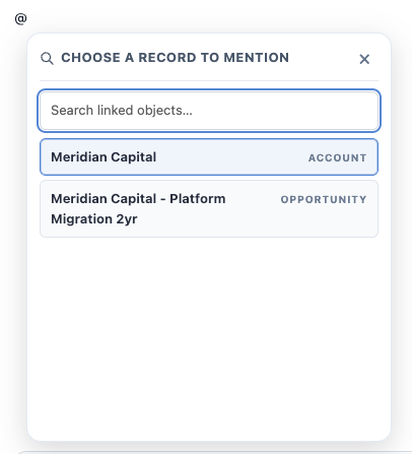
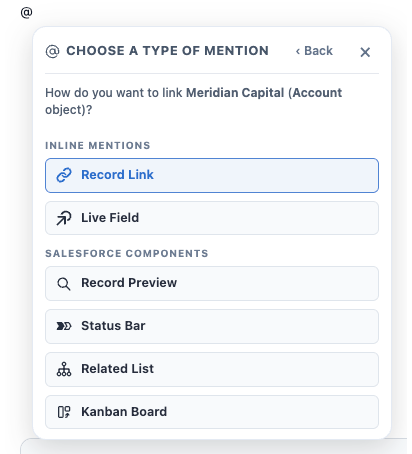
Type **@** anywhere in the body of a Document to open the **@ menu**. Search for any Salesforce record on a Linkable Object, select it, and Folio asks **"How do you want to link this?"** — offering six ways to bring that record into the page, under two group headings.
**Inline mentions**
- **Record Link** — a chip that links to the record.
- **Live Field** — a chip showing a current field value from the record, optionally editable via write-back.
**Salesforce components**
- **Record Preview** — record highlights panel.
- **Status Bar** — picklist path for the record.
- **Related List** — child records under the record.
- **Kanban Board** — board with picklist lanes, inserted in Parent Record mode with this record as the parent.
It's two steps: pick the record, then pick how to bring it in.
Picking a **person** is a little different: for a User record, the link option offered is a **[User Mention](#user-mentions)** rather than a Record Link — a third chip type of its own, distinct from Record Link and Live Field.
Which objects and fields are available is configured by your admin — see [Choose Linkable Objects](/docs/admin/admin-panel/settings#choose-linkable-objects) and [Choose Linkable Fields](/docs/admin/admin-panel/settings#choose-linkable-fields).
**`@` starts from a record; `/` starts from a block.** Everything on this page is anchored to a Salesforce record you pick. To insert structure — headings, tables, callouts, columns — or a component that isn't tied to one record, use the `/` menu instead. See [Formatting Documents](/docs/user-guide/formatting-documents).
## Which options you'll see
The menu only offers what's actually available for the record you picked, so two people can see different options. That's configuration, not malfunction.
| Option | Shown when |
| --- | --- |
| **Record Link** | Always — except for User records, where a **[User Mention](#user-mentions)** is offered instead |
| **Live Field**, **Record Preview**, **Status Bar** | The record's object has Linkable Fields configured by an admin — and never for Folio Document records |
| **Related List**, **Kanban Board** | The object has at least one linkable child relationship — and never for User Mentions, which are person-links only |
If an option you expect is missing, Linkable Fields or a child relationship has not been configured for that object.
### Workbench is not available from @ — by design
Workbench is inserted from the `/` menu only. Unlike the other Salesforce components, a Workbench isn't anchored to an initiating record — it shows records owned by a chosen set of users, so there's nothing for an `@` mention of a specific record to supply. Insert it with **`/wb`** from the slash menu instead. See [Use Salesforce Components](/docs/user-guide/salesforce-components#workbench).
## Record Links
A **Record Link** is a chip in the body pointing at a specific Salesforce record. It always shows the record's **current** name, so it stays accurate through renames.
The chip is a fully rounded pill in **blue**, with the linked object's icon at the left, before the label:
 | Icon | Linked object |
| :---: | --- |
| | Account |
| | Contact |
| | Opportunity |
| | Case |
| | Another Folio Document |
| | Any other Linkable Object — the generic fallback |
There is no User row in this table because mentioning a **User** doesn't produce a Record Link at all — it inserts a **[User Mention](#user-mentions)**, the third chip type.
**Inserting a Record Link creates a relationship.** The record appears immediately in the [Related & Tags drawer](/docs/user-guide/document-editor#5-related--tags-drawer), and the Document becomes visible on that record's page in Salesforce. This is the key difference between a Record Link in the body and a record mentioned inside a comment, which creates no relationship at all — see [Collaborate with Comments](/docs/user-guide/comments#mentioning-a-record).
### To insert a Record Link
1. Type **@** in the Document body.
2. Search for the record and select it.
3. Choose **Record Link**.
4. The chip is inserted at your cursor.
### To open the linked record
Click the chip. A small menu shows the object type and record name, with a link to **open that record in a new tab**.
## Live Fields
A **Live Field** displays a current field value from a linked record — an Opportunity's Stage, Amount, or Close Date — inline in the Document. When the record changes in Salesforce, the Live Field updates. See [Set up Real-Time Updates](/docs/admin/real-time-updates) for how those updates propagate.
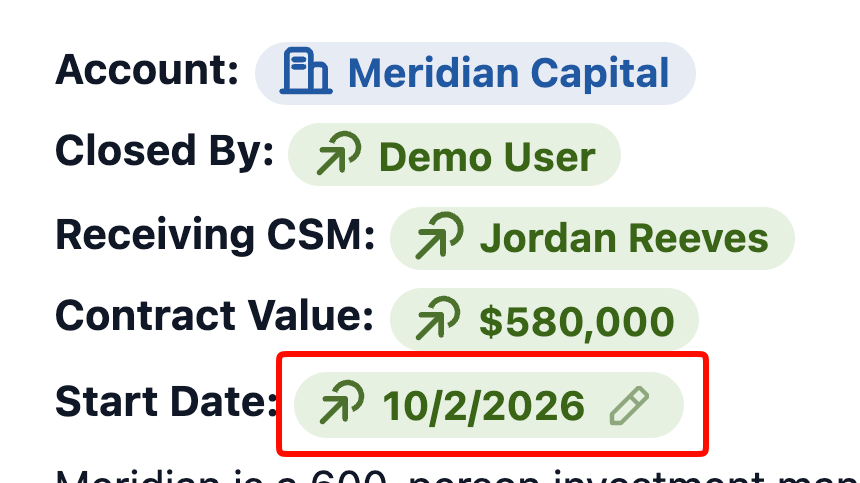
Live Field chips are fully rounded pills in **green**, with the Live Field icon at the left. **The color is how you tell the chip types apart at a glance** — blue is a link to a record, green is a value from one, and [gray with an @](#user-mentions) is a person.
| Icon | Linked object |
| :---: | --- |
| | Account |
| | Contact |
| | Opportunity |
| | Case |
| | Another Folio Document |
| | Any other Linkable Object — the generic fallback |
There is no User row in this table because mentioning a **User** doesn't produce a Record Link at all — it inserts a **[User Mention](#user-mentions)**, the third chip type.
**Inserting a Record Link creates a relationship.** The record appears immediately in the [Related & Tags drawer](/docs/user-guide/document-editor#5-related--tags-drawer), and the Document becomes visible on that record's page in Salesforce. This is the key difference between a Record Link in the body and a record mentioned inside a comment, which creates no relationship at all — see [Collaborate with Comments](/docs/user-guide/comments#mentioning-a-record).
### To insert a Record Link
1. Type **@** in the Document body.
2. Search for the record and select it.
3. Choose **Record Link**.
4. The chip is inserted at your cursor.
### To open the linked record
Click the chip. A small menu shows the object type and record name, with a link to **open that record in a new tab**.
## Live Fields
A **Live Field** displays a current field value from a linked record — an Opportunity's Stage, Amount, or Close Date — inline in the Document. When the record changes in Salesforce, the Live Field updates. See [Set up Real-Time Updates](/docs/admin/real-time-updates) for how those updates propagate.
Live Field chips are fully rounded pills in **green**, with the Live Field icon at the left. **The color is how you tell the chip types apart at a glance** — blue is a link to a record, green is a value from one, and [gray with an @](#user-mentions) is a person.
 Live Fields pointing at **Rich Text**, **Long Text**, or **Text Area** fields are the exception: rather than a chip, they render as a full-document-width node containing the value.
These block-level Live Fields show the field's name as a header above the value. **To show just the value, click the [node handle](/docs/user-guide/document-editor#the-node-handle) on the left and choose "Hide Header."** Useful when the surrounding text already makes clear what the value is, and the label would only repeat it.
### To insert a Live Field
1. Type **@** in the Document body.
2. Search for and select the record.
3. Choose **Live Field**, then pick the specific field.
4. The chip is inserted and displays the current value.
### Write-back
When write-back is enabled for a field, you can edit the value inline and save it straight back to Salesforce. It requires two settings from your admin — the org-wide toggle **and** the per-field one — and it always respects your existing Salesforce access. Folio never grants edit access you don't already have. See [the two-gate rule](/docs/admin/admin-panel/settings#the-two-gate-rule).
**A pencil on the chip is how you spot one.** Hover a Live Field and an editable one shows a pencil; a read-only one doesn't.
Live Fields pointing at **Rich Text**, **Long Text**, or **Text Area** fields are the exception: rather than a chip, they render as a full-document-width node containing the value.
These block-level Live Fields show the field's name as a header above the value. **To show just the value, click the [node handle](/docs/user-guide/document-editor#the-node-handle) on the left and choose "Hide Header."** Useful when the surrounding text already makes clear what the value is, and the label would only repeat it.
### To insert a Live Field
1. Type **@** in the Document body.
2. Search for and select the record.
3. Choose **Live Field**, then pick the specific field.
4. The chip is inserted and displays the current value.
### Write-back
When write-back is enabled for a field, you can edit the value inline and save it straight back to Salesforce. It requires two settings from your admin — the org-wide toggle **and** the per-field one — and it always respects your existing Salesforce access. Folio never grants edit access you don't already have. See [the two-gate rule](/docs/admin/admin-panel/settings#the-two-gate-rule).
**A pencil on the chip is how you spot one.** Hover a Live Field and an editable one shows a pencil; a read-only one doesn't.
 ## User Mentions
A **User Mention** is what `@` inserts when the "record" you pick is a person. It is its own chip type — the third, alongside Record Link and Live Field — styled in **gray**, with the **@** symbol before the person's name. The same gray @ styling is used for user mentions in [comment text](/docs/user-guide/comments#mentioning-a-person), so a person reads the same way wherever they're mentioned.
**Mentioning a user in the Document body shares the Document with them.** The mentioned person is notified, and gets access at the **Auto-Share Level** your admin configured on the User object — see [Special case: the User object](/docs/admin/admin-panel/settings#special-case-the-user-object).
**Body User Mentions require the User object to be a Linkable Object.** If your admin hasn't added **User** to the Selected Objects in [Choose Linkable Objects](/docs/admin/admin-panel/settings#choose-linkable-objects), `@` can't find people in the Document body at all — the mention simply isn't available. Comments are not gated this way: **you can always mention a user inside a comment**, whether or not User is a Linkable Object. See [Collaborate with Comments](/docs/user-guide/comments#mentioning-a-person).
### To insert a User Mention
1. Type **@** in the Document body.
2. Search for the person and select them.
3. Choose **User Mention**.
4. The gray chip is inserted at your cursor, and the Document is shared with that person at the configured level.
## Salesforce components from @
Four of the five Salesforce components can be inserted straight from the `@` menu, anchored to the record you picked:
- **Record Preview** — a highlights panel of key fields from that record.
- **Status Bar** — that record's picklist path, as a clickable progress path.
- **Related List** — child records under that record.
- **Kanban Board** — a board with picklist lanes, inserted in **Parent Record mode** with that record as the parent.
In each case the record you selected becomes the component's anchor, so there's nothing further to pick.
**See [Use Salesforce Components](/docs/user-guide/salesforce-components)** for what each one shows, how to configure it, which field types it supports, and how editing from inside a component works.
## Chip actions
Click an inline chip to open its details panel. The panel names what the chip points at and carries the actions for changing it.
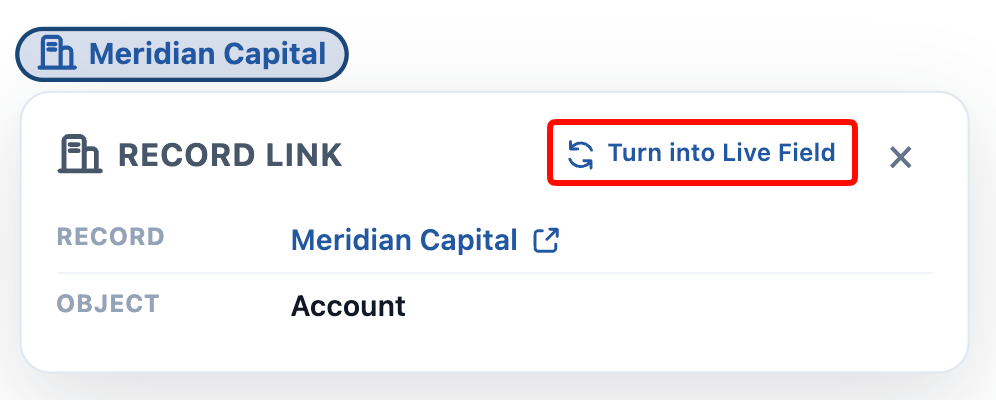
**A Record Link panel** shows the **Record** and **Object**, with **Turn into Live Field** to convert the chip in place.
## User Mentions
A **User Mention** is what `@` inserts when the "record" you pick is a person. It is its own chip type — the third, alongside Record Link and Live Field — styled in **gray**, with the **@** symbol before the person's name. The same gray @ styling is used for user mentions in [comment text](/docs/user-guide/comments#mentioning-a-person), so a person reads the same way wherever they're mentioned.
**Mentioning a user in the Document body shares the Document with them.** The mentioned person is notified, and gets access at the **Auto-Share Level** your admin configured on the User object — see [Special case: the User object](/docs/admin/admin-panel/settings#special-case-the-user-object).
**Body User Mentions require the User object to be a Linkable Object.** If your admin hasn't added **User** to the Selected Objects in [Choose Linkable Objects](/docs/admin/admin-panel/settings#choose-linkable-objects), `@` can't find people in the Document body at all — the mention simply isn't available. Comments are not gated this way: **you can always mention a user inside a comment**, whether or not User is a Linkable Object. See [Collaborate with Comments](/docs/user-guide/comments#mentioning-a-person).
### To insert a User Mention
1. Type **@** in the Document body.
2. Search for the person and select them.
3. Choose **User Mention**.
4. The gray chip is inserted at your cursor, and the Document is shared with that person at the configured level.
## Salesforce components from @
Four of the five Salesforce components can be inserted straight from the `@` menu, anchored to the record you picked:
- **Record Preview** — a highlights panel of key fields from that record.
- **Status Bar** — that record's picklist path, as a clickable progress path.
- **Related List** — child records under that record.
- **Kanban Board** — a board with picklist lanes, inserted in **Parent Record mode** with that record as the parent.
In each case the record you selected becomes the component's anchor, so there's nothing further to pick.
**See [Use Salesforce Components](/docs/user-guide/salesforce-components)** for what each one shows, how to configure it, which field types it supports, and how editing from inside a component works.
## Chip actions
Click an inline chip to open its details panel. The panel names what the chip points at and carries the actions for changing it.
**A Record Link panel** shows the **Record** and **Object**, with **Turn into Live Field** to convert the chip in place.
 **A Live Field panel** shows the **Record**, **Object**, **Field**, **Data Type**, and current **Value**. **Turn into Record Link** converts it back, and **Change Field** points the same chip at a different field on the same record.
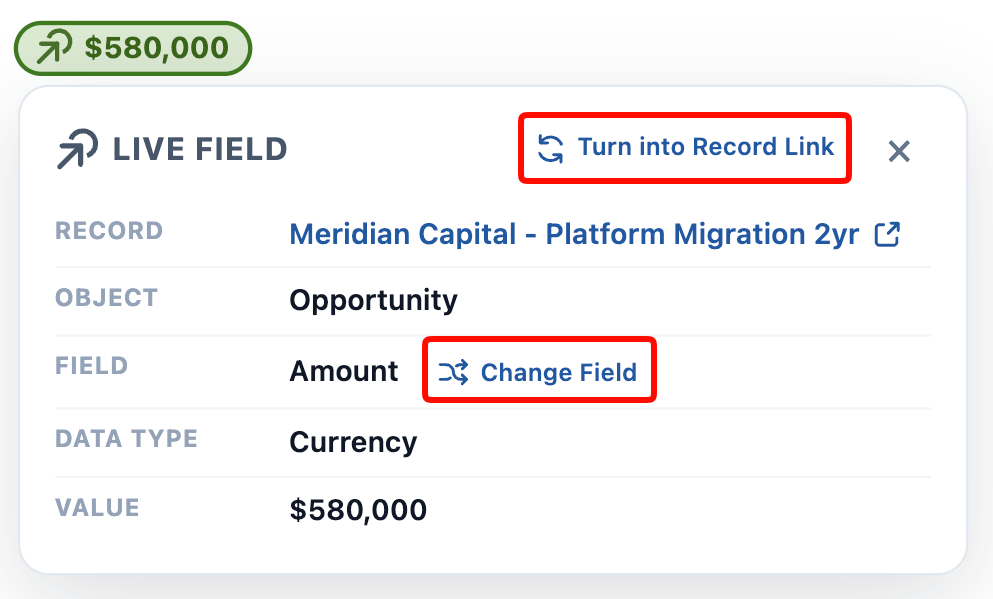 On either panel, the arrow beside the record name **opens that record in a new tab**.
**Your admin can add more fields to these panels.** Beneath the default fields, a details panel can show org-specific fields — an Account's Industry, a User's Department, a custom field — configured per object with a `Folio_Docs_Info` field set. The same applies to User Mention chips and to related record chips in the [Related & Tags drawer](/docs/user-guide/document-editor#5-related--tags-drawer). See [Add Fields to Chip Details](/docs/admin/chip-details-field-sets).
Deleting a Record Link chip from the body does not by itself remove the Document's relationship to that record — manage relationships from the [Related & Tags drawer](/docs/user-guide/document-editor#5-related--tags-drawer).
**Related:** [Use Salesforce Components](/docs/user-guide/salesforce-components) · [Formatting Documents](/docs/user-guide/formatting-documents) · [Using the Folio Document Editor](/docs/user-guide/document-editor) · [Collaborate with Comments](/docs/user-guide/comments)
On either panel, the arrow beside the record name **opens that record in a new tab**.
**Your admin can add more fields to these panels.** Beneath the default fields, a details panel can show org-specific fields — an Account's Industry, a User's Department, a custom field — configured per object with a `Folio_Docs_Info` field set. The same applies to User Mention chips and to related record chips in the [Related & Tags drawer](/docs/user-guide/document-editor#5-related--tags-drawer). See [Add Fields to Chip Details](/docs/admin/chip-details-field-sets).
Deleting a Record Link chip from the body does not by itself remove the Document's relationship to that record — manage relationships from the [Related & Tags drawer](/docs/user-guide/document-editor#5-related--tags-drawer).
**Related:** [Use Salesforce Components](/docs/user-guide/salesforce-components) · [Formatting Documents](/docs/user-guide/formatting-documents) · [Using the Folio Document Editor](/docs/user-guide/document-editor) · [Collaborate with Comments](/docs/user-guide/comments)