# Admin Panel — Migration
Import .docx and Markdown files into Folio Documents, and export Folio Documents back out to Word or Markdown.
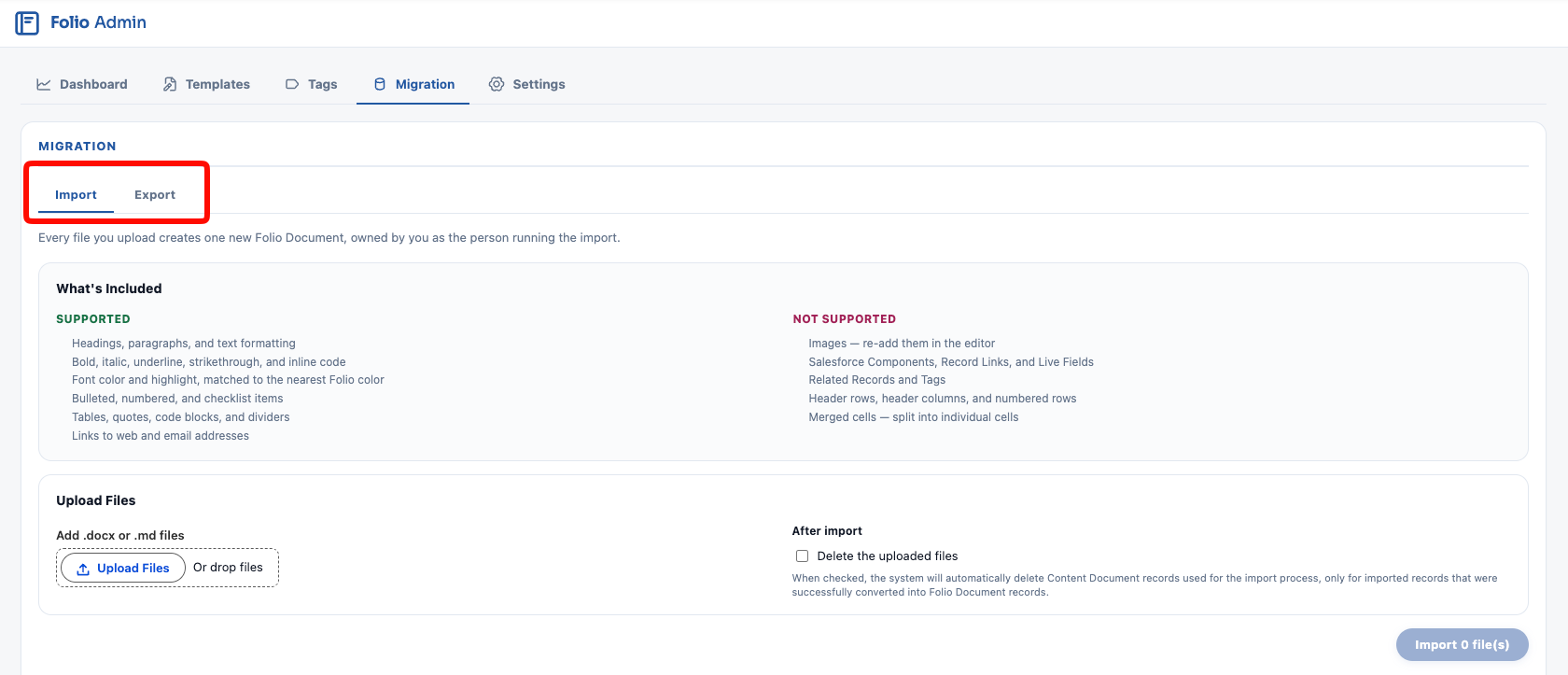
The **Migration** tab of the [Folio Admin app](/docs/admin/admin-panel) moves documents in and out of Folio. It has two tabs of its own: **Import** and **Export**.
Both run as background jobs with their own history table, so you can start a job, leave, and check the result later.
## Who should run migration jobs
**Both jobs run in the context of the user who starts them**, and that has consequences at both ends.
**On export**, you only get the Documents and related records you can already see. A Folio admin without org-wide visibility exports a subset — and the job still reports success, so the shortfall is easy to miss.
**On import**, record references resolve only against records and fields the running user has access to. A Record Link or Live Field pointing at something outside their visibility can't be matched, so it lands unresolved.
> **Run migration jobs as a Salesforce Administrator with View All Data and View All Fields.** The **Folio Docs Administrator** permission set gets someone into the Migration tab; it does not grant visibility of every record in the org. Those are separate things, and only the second one determines what a job can actually see.
If a non-administrator must run a job, they need **View All** on the Folio Document object at minimum — and be aware that related-record resolution is still bounded by their access to those objects.
 ## Import
Import turns `.docx` and Markdown files into Folio Documents. **Every file you upload creates one new Folio Document, owned by you as the person running the import.**
### What's Included
| Supported | Not supported |
| --- | --- |
| Headings, paragraphs, and text formatting | Images — re-add them in the editor |
| Bold, italic, underline, strikethrough, and inline code | Salesforce Components, Record Links, and Live Fields |
| Font color and highlight, matched to the nearest Folio color | Related Records and Tags |
| Bulleted, numbered, and checklist items | Header rows, header columns, and numbered rows |
| Tables, quotes, code blocks, and dividers | Merged cells — split them into individual cells first |
| Links to web and email addresses | |
**Folio imports text only.** Images are skipped and noted in the job log. This is worth knowing when a file is close to the size limit — a 5 MB document is almost always mostly images, so removing them usually brings it under.
Anything unsupported is dropped and recorded in the log rather than failing the file.
### Uploading files
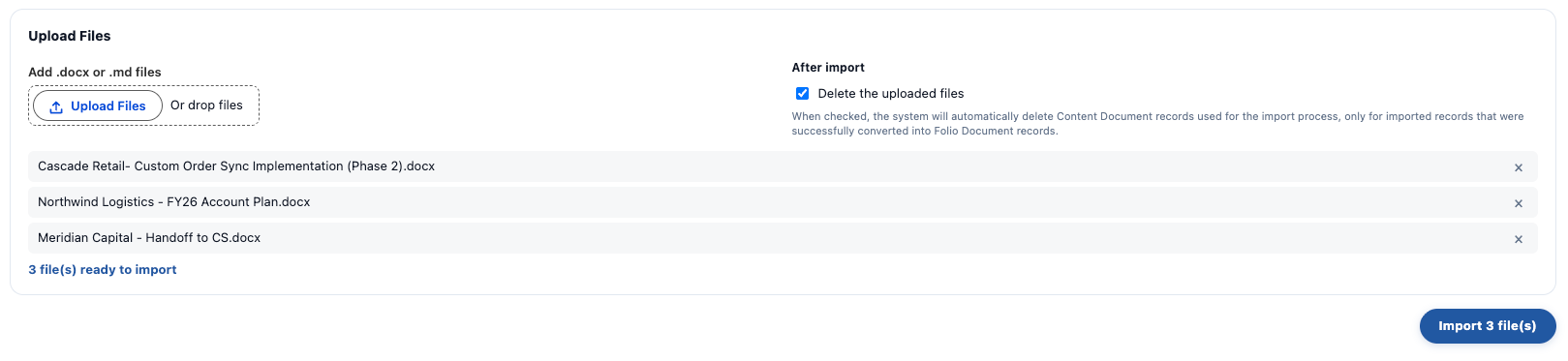
Click **Upload Files**, or drop files onto the upload area.
Files stage in a list before anything runs, with a running count and an **×** on each row so you can drop one you didn't mean to add. The button reflects the count — **Import 3 file(s)** — so you can confirm the set before starting the job.
**After import: Delete the uploaded files** is an optional checkbox. With it selected, Folio deletes the ContentDocument records created for the import — but **only for files that converted successfully, and only files you uploaded yourself.**
Files that fail are always kept so you can inspect them. Deleted files are **recoverable from the Recycle Bin** until it's emptied.
Leaving the box unchecked keeps every uploaded file in the org. See [Import and export files](/docs/reference/data-storage#import-and-export-files) for the storage implications.
## Import
Import turns `.docx` and Markdown files into Folio Documents. **Every file you upload creates one new Folio Document, owned by you as the person running the import.**
### What's Included
| Supported | Not supported |
| --- | --- |
| Headings, paragraphs, and text formatting | Images — re-add them in the editor |
| Bold, italic, underline, strikethrough, and inline code | Salesforce Components, Record Links, and Live Fields |
| Font color and highlight, matched to the nearest Folio color | Related Records and Tags |
| Bulleted, numbered, and checklist items | Header rows, header columns, and numbered rows |
| Tables, quotes, code blocks, and dividers | Merged cells — split them into individual cells first |
| Links to web and email addresses | |
**Folio imports text only.** Images are skipped and noted in the job log. This is worth knowing when a file is close to the size limit — a 5 MB document is almost always mostly images, so removing them usually brings it under.
Anything unsupported is dropped and recorded in the log rather than failing the file.
### Uploading files
Click **Upload Files**, or drop files onto the upload area.
Files stage in a list before anything runs, with a running count and an **×** on each row so you can drop one you didn't mean to add. The button reflects the count — **Import 3 file(s)** — so you can confirm the set before starting the job.
**After import: Delete the uploaded files** is an optional checkbox. With it selected, Folio deletes the ContentDocument records created for the import — but **only for files that converted successfully, and only files you uploaded yourself.**
Files that fail are always kept so you can inspect them. Deleted files are **recoverable from the Recycle Bin** until it's emptied.
Leaving the box unchecked keeps every uploaded file in the org. See [Import and export files](/docs/reference/data-storage#import-and-export-files) for the storage implications.
 ### Import limits
| Limit | Value |
| --- | --- |
| Files per import job | 500 |
| Size per file | 5 MB |
| Content per document | 393,216 characters |
| Accepted file types | `.md`, `.docx` |
**More than 500 files is refused at submission**, with the message *"Import is limited to 500 files per job. Upload them in smaller sets."*
A file over 5 MB fails on its own with:
```
: file is too large to import (X MB; the maximum is 5.0 MB). Folio imports text only, so removing images usually brings a file under the limit.
```
That advice is worth taking literally — since images aren't imported anyway, stripping them costs nothing and usually clears the limit.
The character limit applies to **encoded** content, so formatting counts toward it — a heavily formatted document holds less text than a plain one.
**One bad file never stops the others.** Files that exceed a limit or can't be parsed fail individually and are listed in the job log with the reason. Everything else in the job still imports.
### Import History
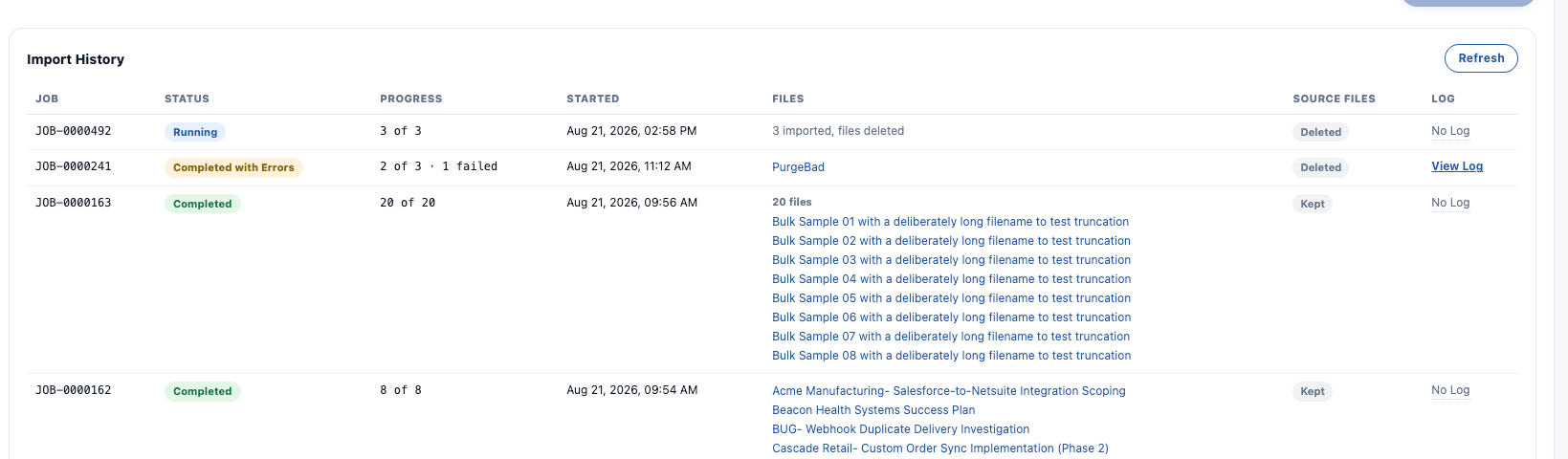
Each job appears in the **Import History** table below the upload area. **Refresh** updates the table.
| Column | Shows |
| --- | --- |
| **Job** | The job number, e.g. `JOB-0000241` |
| **Status** | **Queued**, **Running**, **Completed**, **Completed with Errors** when some files failed, or **Failed** when the job itself failed |
| **Progress** | Files processed out of total, with a failure count — `2 of 3 · 1 failed` |
| **Started** | When the job began |
| **Files** | Links to the **uploaded source files**, not the Documents created from them. Shows **N imported, files deleted** instead when the source files were deleted |
| **Source files** | **Kept** or **Deleted**, reflecting the After import checkbox |
| **Log** | **View Log** when the job recorded anything, otherwise **No Log** |
When a job imported many files, the **Files** column shows a count above the list — `20 files` — so a large job doesn't crowd out the rows around it.
### Import limits
| Limit | Value |
| --- | --- |
| Files per import job | 500 |
| Size per file | 5 MB |
| Content per document | 393,216 characters |
| Accepted file types | `.md`, `.docx` |
**More than 500 files is refused at submission**, with the message *"Import is limited to 500 files per job. Upload them in smaller sets."*
A file over 5 MB fails on its own with:
```
: file is too large to import (X MB; the maximum is 5.0 MB). Folio imports text only, so removing images usually brings a file under the limit.
```
That advice is worth taking literally — since images aren't imported anyway, stripping them costs nothing and usually clears the limit.
The character limit applies to **encoded** content, so formatting counts toward it — a heavily formatted document holds less text than a plain one.
**One bad file never stops the others.** Files that exceed a limit or can't be parsed fail individually and are listed in the job log with the reason. Everything else in the job still imports.
### Import History
Each job appears in the **Import History** table below the upload area. **Refresh** updates the table.
| Column | Shows |
| --- | --- |
| **Job** | The job number, e.g. `JOB-0000241` |
| **Status** | **Queued**, **Running**, **Completed**, **Completed with Errors** when some files failed, or **Failed** when the job itself failed |
| **Progress** | Files processed out of total, with a failure count — `2 of 3 · 1 failed` |
| **Started** | When the job began |
| **Files** | Links to the **uploaded source files**, not the Documents created from them. Shows **N imported, files deleted** instead when the source files were deleted |
| **Source files** | **Kept** or **Deleted**, reflecting the After import checkbox |
| **Log** | **View Log** when the job recorded anything, otherwise **No Log** |
When a job imported many files, the **Files** column shows a count above the list — `20 files` — so a large job doesn't crowd out the rows around it.
 ### Reading the job log
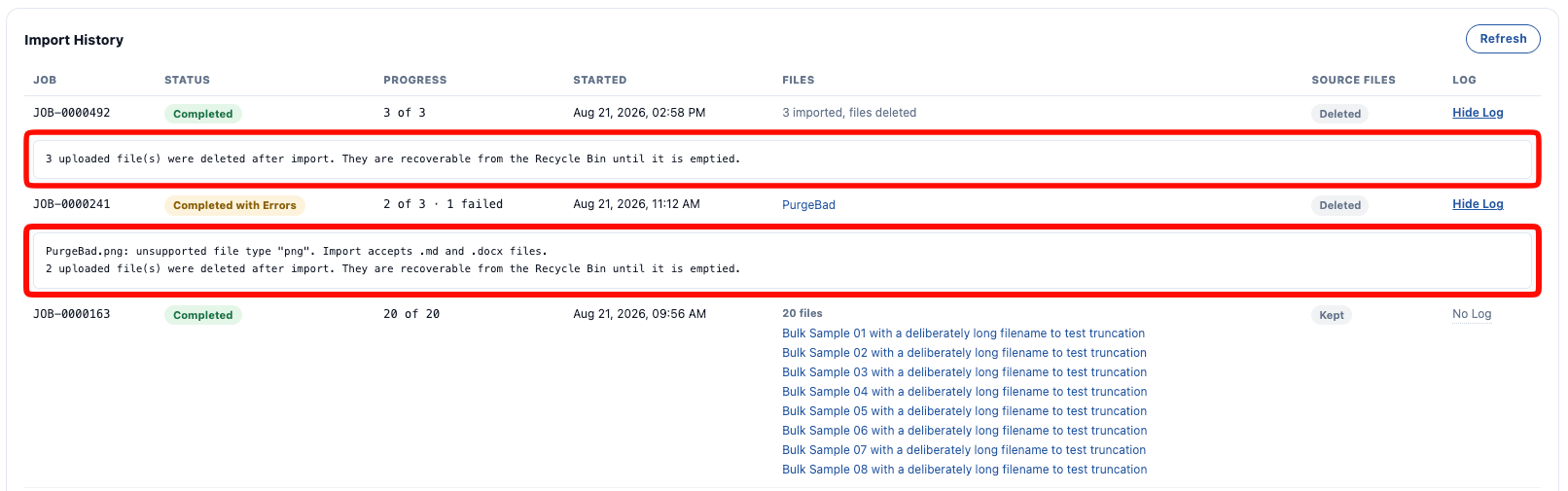
**View Log** expands the log beneath its row, and **Hide Log** collapses it again. It records anything worth knowing about the job — unsupported file types, formatting that couldn't be carried across, and a note when source files were deleted:
```
PurgeBad.png: unsupported file type "png". Import accepts .md and .docx files.
2 uploaded file(s) were deleted after import. They are recoverable from the Recycle Bin until it is emptied.
```
**A log doesn't mean something went wrong.** A job that completed cleanly still logs the deletion note when source files were removed, so **View Log** on a green **Completed** row is routine rather than a warning.
### Reading the job log
**View Log** expands the log beneath its row, and **Hide Log** collapses it again. It records anything worth knowing about the job — unsupported file types, formatting that couldn't be carried across, and a note when source files were deleted:
```
PurgeBad.png: unsupported file type "png". Import accepts .md and .docx files.
2 uploaded file(s) were deleted after import. They are recoverable from the Recycle Bin until it is emptied.
```
**A log doesn't mean something went wrong.** A job that completed cleanly still logs the deletion note when source files were removed, so **View Log** on a green **Completed** row is routine rather than a warning.
 ## Export
Export turns Folio Documents into Word or Markdown files. The tab walks through four steps.
### 1. Choose what to export
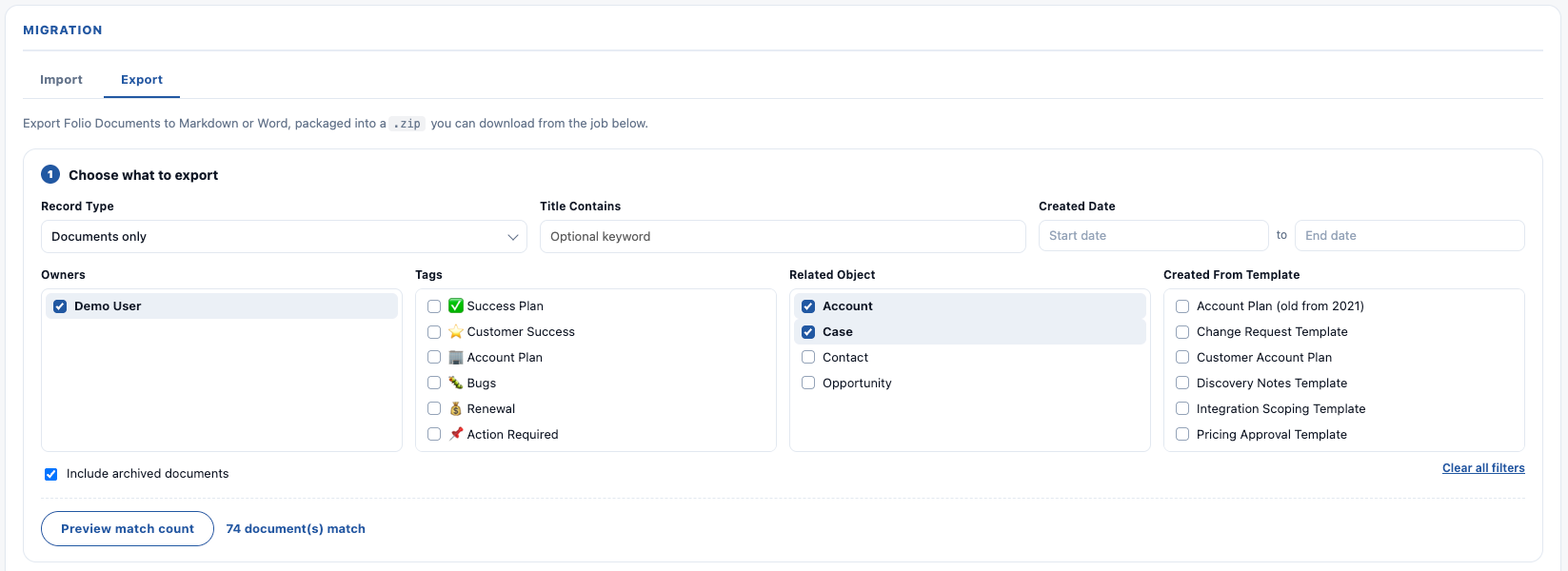
Filters narrow which Documents are included. **Any filter left blank is ignored.**
| Filter | Notes |
| --- | --- |
| **Record Type** | **Documents only**, **Templates only**, or **Documents and templates** |
| **Title Contains** | Optional keyword match |
| **Created Date** | A start and end date range |
| **Owners** | Multi-select |
| **Tags** | Multi-select |
| **Related Object** | Multi-select |
| **Created From Template** | Multi-select |
In any multi-select list, **Shift-click selects a range**.
**Include archived documents** pulls in Documents that were archived rather than deleted — relevant when [hard delete is disabled](/docs/admin/admin-panel/settings#delete-permissions), which is the default.
**Preview match count** reports how many records the current filters match, as *"X document(s) match"*, before you commit to the job. **Clear all filters** resets every field at once.
**Preview match count reflects your own visibility.** The number it reports is what *you* can see, not what exists — see [Who should run migration jobs](#who-should-run-migration-jobs).
## Export
Export turns Folio Documents into Word or Markdown files. The tab walks through four steps.
### 1. Choose what to export
Filters narrow which Documents are included. **Any filter left blank is ignored.**
| Filter | Notes |
| --- | --- |
| **Record Type** | **Documents only**, **Templates only**, or **Documents and templates** |
| **Title Contains** | Optional keyword match |
| **Created Date** | A start and end date range |
| **Owners** | Multi-select |
| **Tags** | Multi-select |
| **Related Object** | Multi-select |
| **Created From Template** | Multi-select |
In any multi-select list, **Shift-click selects a range**.
**Include archived documents** pulls in Documents that were archived rather than deleted — relevant when [hard delete is disabled](/docs/admin/admin-panel/settings#delete-permissions), which is the default.
**Preview match count** reports how many records the current filters match, as *"X document(s) match"*, before you commit to the job. **Clear all filters** resets every field at once.
**Preview match count reflects your own visibility.** The number it reports is what *you* can see, not what exists — see [Who should run migration jobs](#who-should-run-migration-jobs).
 ### 2. Choose a format
| Format | Notes |
| --- | --- |
| **Word (.docx)** | Full fidelity. Keeps underline, font color, highlight, cell shading, and column widths. |
| **Markdown (.md)** | Portable and plain-text. Markdown has no syntax for underline, color, or highlight, so those are dropped and listed in the job log. |
Bulk export offers these two formats. A **single** Document can also be exported as **PDF**, via **Export as…** in the editor's [3-dots overflow menu](/docs/user-guide/document-editor#3-dots-overflow-menu).
### 2. Choose a format
| Format | Notes |
| --- | --- |
| **Word (.docx)** | Full fidelity. Keeps underline, font color, highlight, cell shading, and column widths. |
| **Markdown (.md)** | Portable and plain-text. Markdown has no syntax for underline, color, or highlight, so those are dropped and listed in the job log. |
Bulk export offers these two formats. A **single** Document can also be exported as **PDF**, via **Export as…** in the editor's [3-dots overflow menu](/docs/user-guide/document-editor#3-dots-overflow-menu).
 ### 3. Choose a destination
**Download as a .zip** — everything is packaged into zip files you download from the job row.
Documents are batched **25 per zip part**, so a large export produces several parts presented as one download set. A 10,000-document export produces 400 parts. The zips are stored as ContentDocuments and are subject to [Document Export Retention](/docs/admin/admin-panel/settings#data-retention), which purges them after 6 months by default.
**Save to Files on each document** — each Document is converted to the chosen format and filed against itself *and* every record it was related to **at the time of processing**. This is the same behavior as **Save to Files** on a single Document. Nothing is downloaded.
That timing matters: a relationship added after the job starts won't get a copy of the file.
**Save to Files output is never purged by retention.** Only Download archives expire. Setting retention to `0` keeps Download archives indefinitely too.
### 3. Choose a destination
**Download as a .zip** — everything is packaged into zip files you download from the job row.
Documents are batched **25 per zip part**, so a large export produces several parts presented as one download set. A 10,000-document export produces 400 parts. The zips are stored as ContentDocuments and are subject to [Document Export Retention](/docs/admin/admin-panel/settings#data-retention), which purges them after 6 months by default.
**Save to Files on each document** — each Document is converted to the chosen format and filed against itself *and* every record it was related to **at the time of processing**. This is the same behavior as **Save to Files** on a single Document. Nothing is downloaded.
That timing matters: a relationship added after the job starts won't get a copy of the file.
**Save to Files output is never purged by retention.** Only Download archives expire. Setting retention to `0` keeps Download archives indefinitely too.
 ### 4. Handle Folio-only content
Some Folio content has no equivalent in a Word or Markdown file. These two dropdowns decide what happens to it.
**Record Links and Live Fields**
- **Export the current value** — the name of Record Links and the values in Live Fields are resolved at export time.
- **Value plus a bracketed description** — the same value, followed by a bracket holding four parts joined by `·`: **object · record name · field label · record ID**. The record name is usually the part a reader needs; the ID is there for tracing it back.
**Salesforce Components**
- **Render their current data** — each Status Bar, Record Preview, Related List, Workbench, and Kanban Board is queried and written into the file as a table of its current values.
- **Describe them in a placeholder** — the same components are replaced with a description of what was there.
- **Leave them out entirely** — omit them from the output.
**Rendering current data makes a job noticeably slower.** Each component has to be queried, so Documents containing them are exported one at a time to give each its own query budget. On a large export, choose a placeholder or omission unless the component data is what you're exporting for.
Click **Start export** to begin the job.
### 4. Handle Folio-only content
Some Folio content has no equivalent in a Word or Markdown file. These two dropdowns decide what happens to it.
**Record Links and Live Fields**
- **Export the current value** — the name of Record Links and the values in Live Fields are resolved at export time.
- **Value plus a bracketed description** — the same value, followed by a bracket holding four parts joined by `·`: **object · record name · field label · record ID**. The record name is usually the part a reader needs; the ID is there for tracing it back.
**Salesforce Components**
- **Render their current data** — each Status Bar, Record Preview, Related List, Workbench, and Kanban Board is queried and written into the file as a table of its current values.
- **Describe them in a placeholder** — the same components are replaced with a description of what was there.
- **Leave them out entirely** — omit them from the output.
**Rendering current data makes a job noticeably slower.** Each component has to be queried, so Documents containing them are exported one at a time to give each its own query budget. On a large export, choose a placeholder or omission unless the component data is what you're exporting for.
Click **Start export** to begin the job.
 ### Export limits
| Limit | Value |
| --- | --- |
| Documents per export job | 10,000 |
| Formats (bulk) | Markdown, DOCX |
| Formats (single Document) | Markdown, DOCX, PDF |
| Destination | Download `.zip`, or Save to Files |
| Archive retention (Download only) | 6 months, configurable in [Advanced Settings](/docs/admin/admin-panel/settings#data-retention) |
**A filter matching more than 10,000 Documents is refused before the job starts:**
```
That filter matches N documents, which is above the 10000-document limit. Narrow the filter and try again.
```
Nothing runs and no job record is created.
### Export History
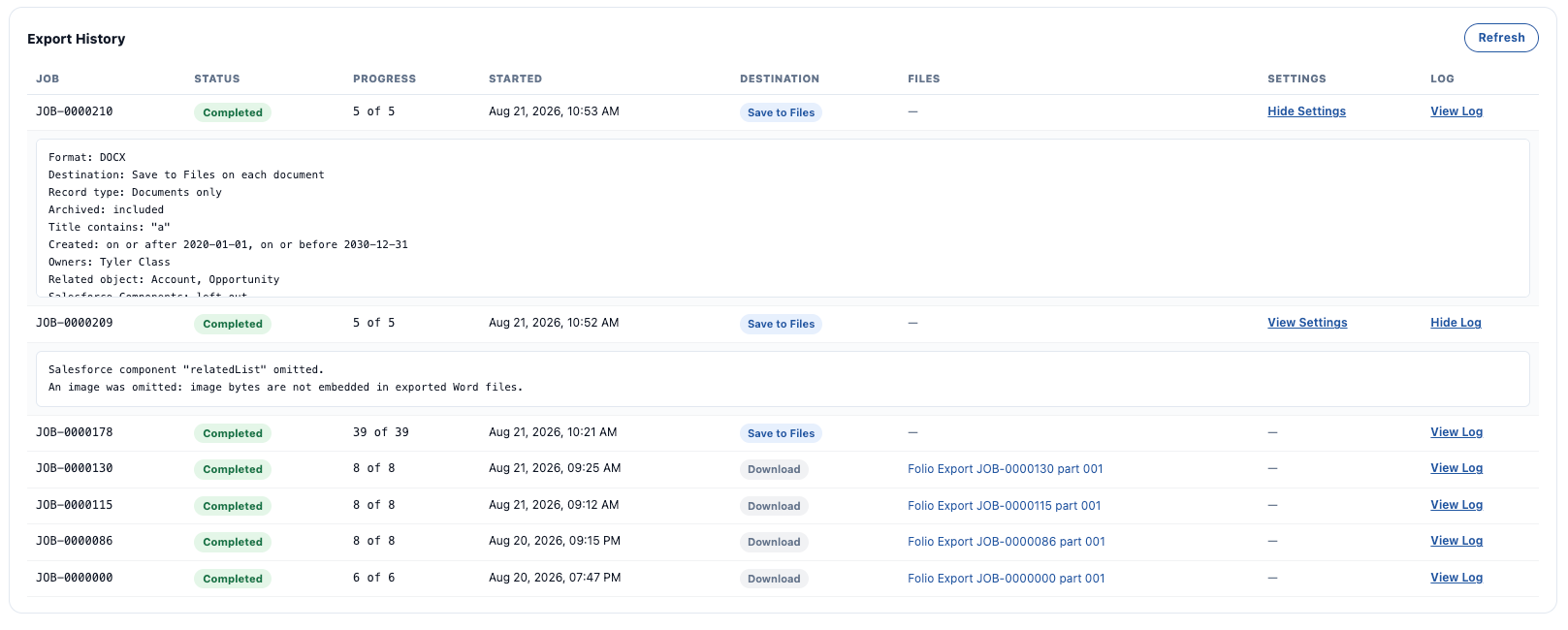
Each job appears in the **Export History** table. **Refresh** updates it.
| Column | Shows |
| --- | --- |
| **Job** | The job number |
| **Status** | **Queued**, **Running**, **Completed**, **Completed with Errors**, or **Failed** |
| **Progress** | Documents completed out of total, with a failure count where any failed — `2 of 3 · 1 failed` |
| **Started** | When the job began |
| **Destination** | **Download** or **Save to Files** |
| **Files** | Download links to each zip part, for Download jobs. **—** for Save to Files. Once retention removes an archive the cell reads **Export .zip purged on _date_** |
| **Settings** | **View Settings** shows the filters and options used for that job |
| **Log** | **View Log** shows anomalies — unsupported formatting, omitted images, and similar |
**View Settings** records the whole configuration that produced a job — format, destination, record type, whether archived Documents were included, every filter that was set, and how Folio-only content was handled. It expands beneath the row, so an export can be reproduced or audited long after it ran.
**Images are not carried into exported files.** Image bytes aren't embedded in the output, so each one is dropped and noted in the log. That mirrors import, where images aren't brought in either — Folio moves text in both directions.
### Export limits
| Limit | Value |
| --- | --- |
| Documents per export job | 10,000 |
| Formats (bulk) | Markdown, DOCX |
| Formats (single Document) | Markdown, DOCX, PDF |
| Destination | Download `.zip`, or Save to Files |
| Archive retention (Download only) | 6 months, configurable in [Advanced Settings](/docs/admin/admin-panel/settings#data-retention) |
**A filter matching more than 10,000 Documents is refused before the job starts:**
```
That filter matches N documents, which is above the 10000-document limit. Narrow the filter and try again.
```
Nothing runs and no job record is created.
### Export History
Each job appears in the **Export History** table. **Refresh** updates it.
| Column | Shows |
| --- | --- |
| **Job** | The job number |
| **Status** | **Queued**, **Running**, **Completed**, **Completed with Errors**, or **Failed** |
| **Progress** | Documents completed out of total, with a failure count where any failed — `2 of 3 · 1 failed` |
| **Started** | When the job began |
| **Destination** | **Download** or **Save to Files** |
| **Files** | Download links to each zip part, for Download jobs. **—** for Save to Files. Once retention removes an archive the cell reads **Export .zip purged on _date_** |
| **Settings** | **View Settings** shows the filters and options used for that job |
| **Log** | **View Log** shows anomalies — unsupported formatting, omitted images, and similar |
**View Settings** records the whole configuration that produced a job — format, destination, record type, whether archived Documents were included, every filter that was set, and how Folio-only content was handled. It expands beneath the row, so an export can be reproduced or audited long after it ran.
**Images are not carried into exported files.** Image bytes aren't embedded in the output, so each one is dropped and noted in the log. That mirrors import, where images aren't brought in either — Folio moves text in both directions.
 ## Limits that come from Salesforce
A few constraints aren't Folio's and apply to any org:
- **5 batch jobs running concurrently**, with 100 queued.
- A **daily asynchronous execution allowance**.
Both jobs process in chunks sized against Salesforce's **12 MB asynchronous heap limit**: **10 files per chunk on import**, **25 documents per chunk on export**.
The units differ because each job iterates over a different thing — uploaded files going in, Documents coming out. On export, **one `.zip` part is written per chunk**, which is why parts hold 25 documents each.
A very large migration may need to run across more than one day.
**Related:** [Use the Admin Panel](/docs/admin/admin-panel) · [Settings](/docs/admin/admin-panel/settings) · [Data Storage in Folio](/docs/reference/data-storage#import-and-export-files) · [Tags](/docs/admin/admin-panel/tags)
## Limits that come from Salesforce
A few constraints aren't Folio's and apply to any org:
- **5 batch jobs running concurrently**, with 100 queued.
- A **daily asynchronous execution allowance**.
Both jobs process in chunks sized against Salesforce's **12 MB asynchronous heap limit**: **10 files per chunk on import**, **25 documents per chunk on export**.
The units differ because each job iterates over a different thing — uploaded files going in, Documents coming out. On export, **one `.zip` part is written per chunk**, which is why parts hold 25 documents each.
A very large migration may need to run across more than one day.
**Related:** [Use the Admin Panel](/docs/admin/admin-panel) · [Settings](/docs/admin/admin-panel/settings) · [Data Storage in Folio](/docs/reference/data-storage#import-and-export-files) · [Tags](/docs/admin/admin-panel/tags)