# Use the Admin Panel
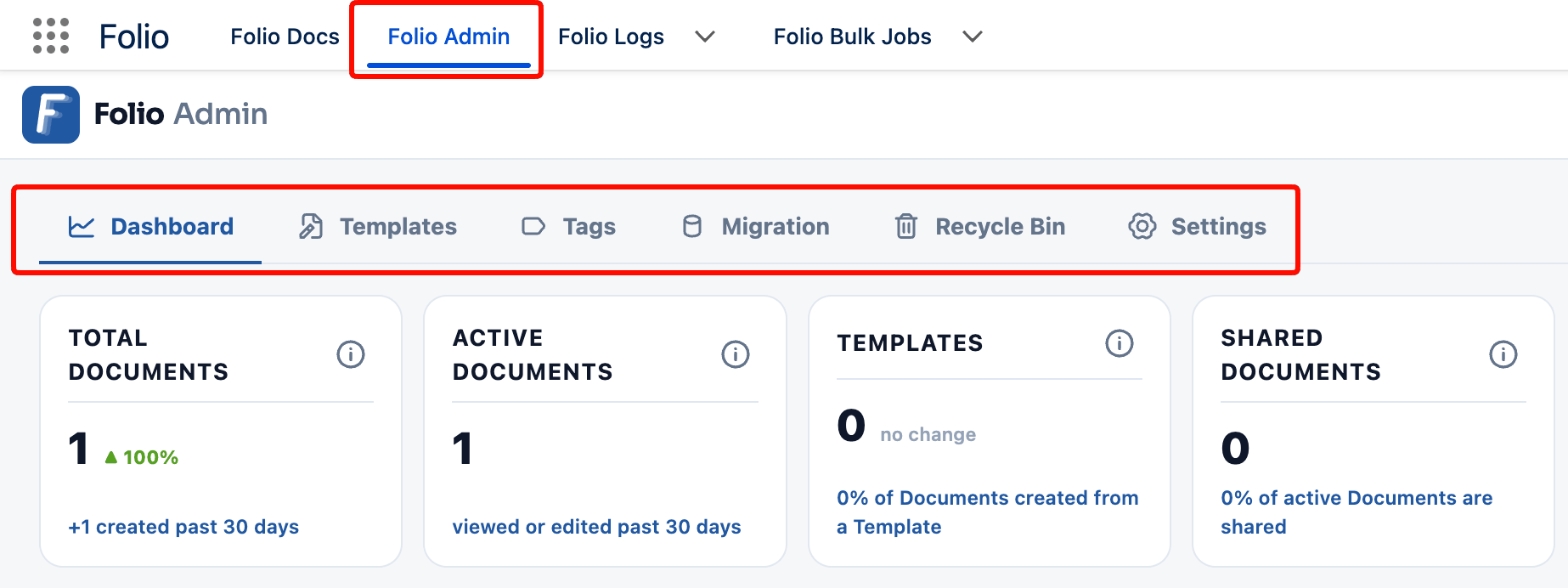
The Folio Admin app and its six tabs — Dashboard, Templates, Tags, Migration, Recycle Bin, and Settings — with links to the full guide for each.
The **Folio Admin** app is the single place Folio Admins configure and monitor Folio Docs. It is organized into six tabs.
**Open it:** App Launcher → search **Folio Admin**. Optionally pin it to your navigation bar for easy access.
> **Only Folio Admins can open the Admin Panel.** The **Folio Docs Administrator** permission set is required — being a Salesforce Administrator is not sufficient on its own. See [Assign Permissions](/docs/getting-started/licenses-and-permissions) for how to grant it. Some settings on the **Settings** tab additionally require Salesforce system permissions — see [Who can change what](/docs/admin/admin-panel/settings#who-can-change-what) for the specifics.
## The six tabs
1 **[Dashboard](/docs/admin/admin-panel/dashboard)** — adoption and usage analytics for Folio across the org: KPI tiles, adoption trends over time, and breakdowns of where Documents are being used and which automations are running.
2 **[Templates](/docs/admin/admin-panel/templates)** — create and maintain the Templates your users build Documents from, using the Template Builder, the Merge Field Picker, and merge-field syntax.
3 **[Tags](/docs/admin/admin-panel/tags)** — org-wide Tag management: review every Tag, set default colors, and merge or delete Tags across all the Documents that use them.
4 **[Migration](/docs/admin/admin-panel/migration)** — import `.docx` and Markdown files into Folio Documents, and export Folio Documents back out to Word or Markdown.
5 **[Recycle Bin](/docs/admin/admin-panel/recycle-bin)** — a table of every archived Document in the org, and the place to restore one that was deleted by mistake.
6 **[Settings](/docs/admin/admin-panel/settings)** — everything that governs how Folio behaves: Linkable Objects, Linkable Fields and write-back, background jobs, automatic sharing and linking, delete permissions, and the Advanced Settings holding data retention and the object allowlist.
 ## Where to start
If this is a new install, work through the tabs in this order:
1. **[Settings](/docs/admin/admin-panel/settings)** first — choosing your Linkable Objects, selecting Linkable Fields, and turning on Background Jobs is what unlocks the most value from Folio Docs.
2. **[Templates](/docs/admin/admin-panel/templates)** next — once objects and fields are configured, Templates can reference them.
3. **[Tags](/docs/admin/admin-panel/tags)** as your users start creating content and a Tag vocabulary emerges.
4. **[Migration](/docs/admin/admin-panel/migration)** if you're bringing existing documents in from elsewhere.
5. **[Dashboard](/docs/admin/admin-panel/dashboard)** on an ongoing basis, to watch adoption and spot which Templates and objects are actually being used.
For a complete, ordered rollout plan that covers the Admin Panel alongside everything else, follow the [Setup Checklist](/docs/getting-started/setup-checklist).
**Related:** [Check the Prerequisites](/docs/getting-started/prerequisites) · [Dashboard](/docs/admin/admin-panel/dashboard) · [Templates](/docs/admin/admin-panel/templates) · [Tags](/docs/admin/admin-panel/tags) · [Migration](/docs/admin/admin-panel/migration) · [Recycle Bin](/docs/admin/admin-panel/recycle-bin) · [Settings](/docs/admin/admin-panel/settings) · [Understand the Folio Data Model](/docs/getting-started/data-model)
## Where to start
If this is a new install, work through the tabs in this order:
1. **[Settings](/docs/admin/admin-panel/settings)** first — choosing your Linkable Objects, selecting Linkable Fields, and turning on Background Jobs is what unlocks the most value from Folio Docs.
2. **[Templates](/docs/admin/admin-panel/templates)** next — once objects and fields are configured, Templates can reference them.
3. **[Tags](/docs/admin/admin-panel/tags)** as your users start creating content and a Tag vocabulary emerges.
4. **[Migration](/docs/admin/admin-panel/migration)** if you're bringing existing documents in from elsewhere.
5. **[Dashboard](/docs/admin/admin-panel/dashboard)** on an ongoing basis, to watch adoption and spot which Templates and objects are actually being used.
For a complete, ordered rollout plan that covers the Admin Panel alongside everything else, follow the [Setup Checklist](/docs/getting-started/setup-checklist).
**Related:** [Check the Prerequisites](/docs/getting-started/prerequisites) · [Dashboard](/docs/admin/admin-panel/dashboard) · [Templates](/docs/admin/admin-panel/templates) · [Tags](/docs/admin/admin-panel/tags) · [Migration](/docs/admin/admin-panel/migration) · [Recycle Bin](/docs/admin/admin-panel/recycle-bin) · [Settings](/docs/admin/admin-panel/settings) · [Understand the Folio Data Model](/docs/getting-started/data-model)